

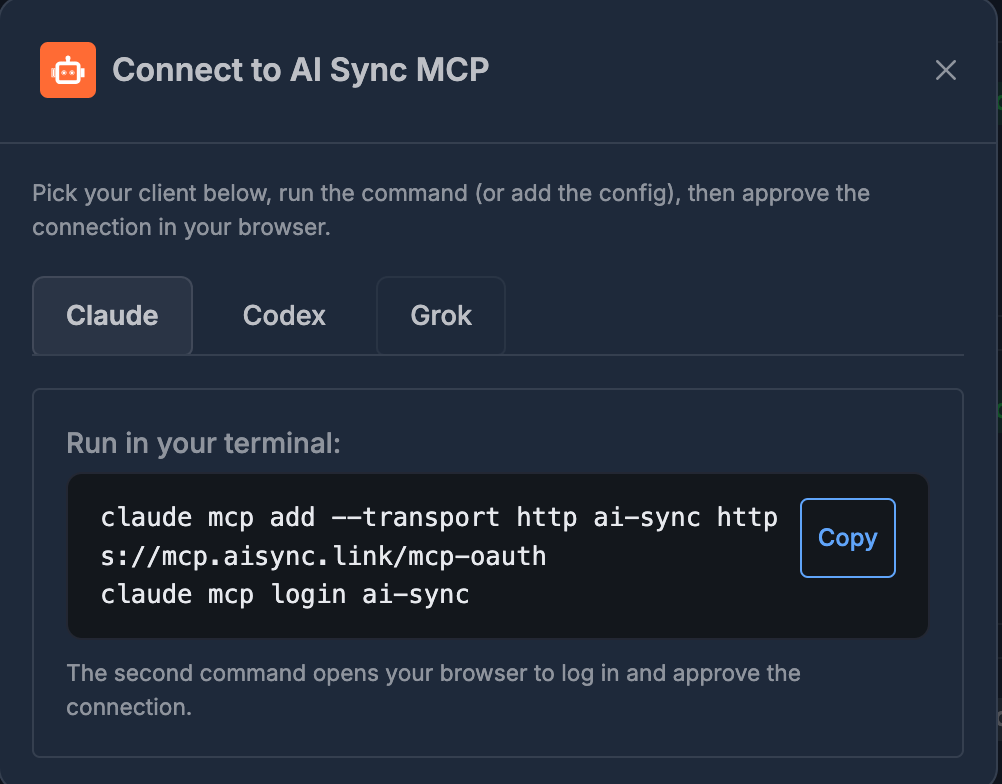
There are two AI Sync connections. This page sets up the one that reads and
changes your account, which needs your login.There is also a read-only connection to these documentation pages that needs
no account at all — useful for new reps and contractors. See
Connect your agent to these docs. Most teams run both.
🎯 Why use MCP?
Without MCP, you open the AI Sync Dashboard and click through screens to do work. With MCP, you stay in your AI client and type what you need. Your agent talks to AI Sync for you.
Examples of what you can ask after connecting:
- “List my AI agents”
- “Create a new outbound agent for lead follow-up”
- “Show recent call history”
- “Which phone numbers are available?”
🧭 One-time setup
Do this once per client. After that, you only give commands.- Open MCP (Connect to AI Sync MCP).
- Pick your client: Claude, Codex, or Grok.
- Click Copy and run the command in your terminal.
- Approve access in your browser when asked.
Setup is only for connecting the client. Day-to-day use is just talking to your agent.
🟣 Claude
- Select the Claude tab.
- Run these commands:
- The second command opens your browser — log in and approve the connection.
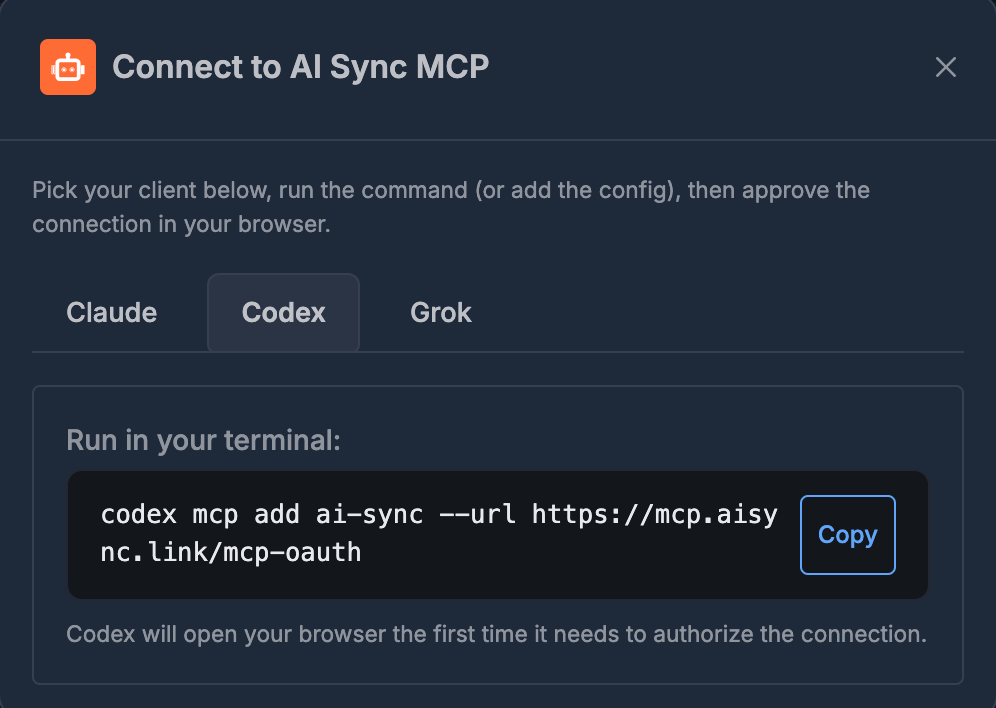
🟦 Codex
- Select the Codex tab.
- Run this command:
- Codex opens your browser so you can sign in and approve. If it doesn’t, run
codex mcp login ai-sync.
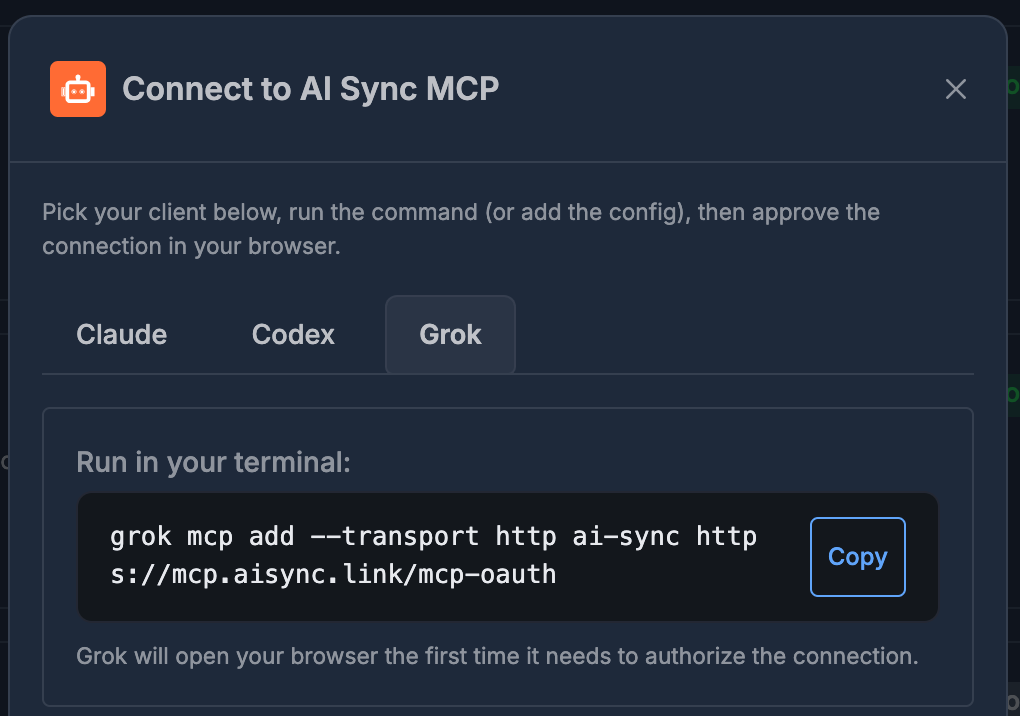
🟨 Grok
- Select the Grok tab.
- Run this command:
- Grok opens your browser the first time it needs to authorize.
✅ How to use it every day
After setup:- Open Claude, Codex, or Grok as usual.
- Ask for what you need in plain language.
- Your agent uses AI Sync MCP in the background.
- You do not need to open the Dashboard for those tasks.
🛠️ If something goes wrong
➡️ Now that you are connected
Connect the docs too
A read-only link to these pages. No login, safe for anyone.
Ask about your numbers
Questions that work, and how to tell a trustworthy answer from a confident one.
Run your dialer by chat
Make real changes safely, and what to confirm before you do.