

📊 Overview
The AI Dashboard is a central overview of your AI assistants and the calls handled by them. Here you can see how many agents and phone numbers you have, how many calls occurred in a chosen period, how long calls lasted on average, how many were successful, how many appointments were booked, and why calls ended. Charts and tables below help you explore the details.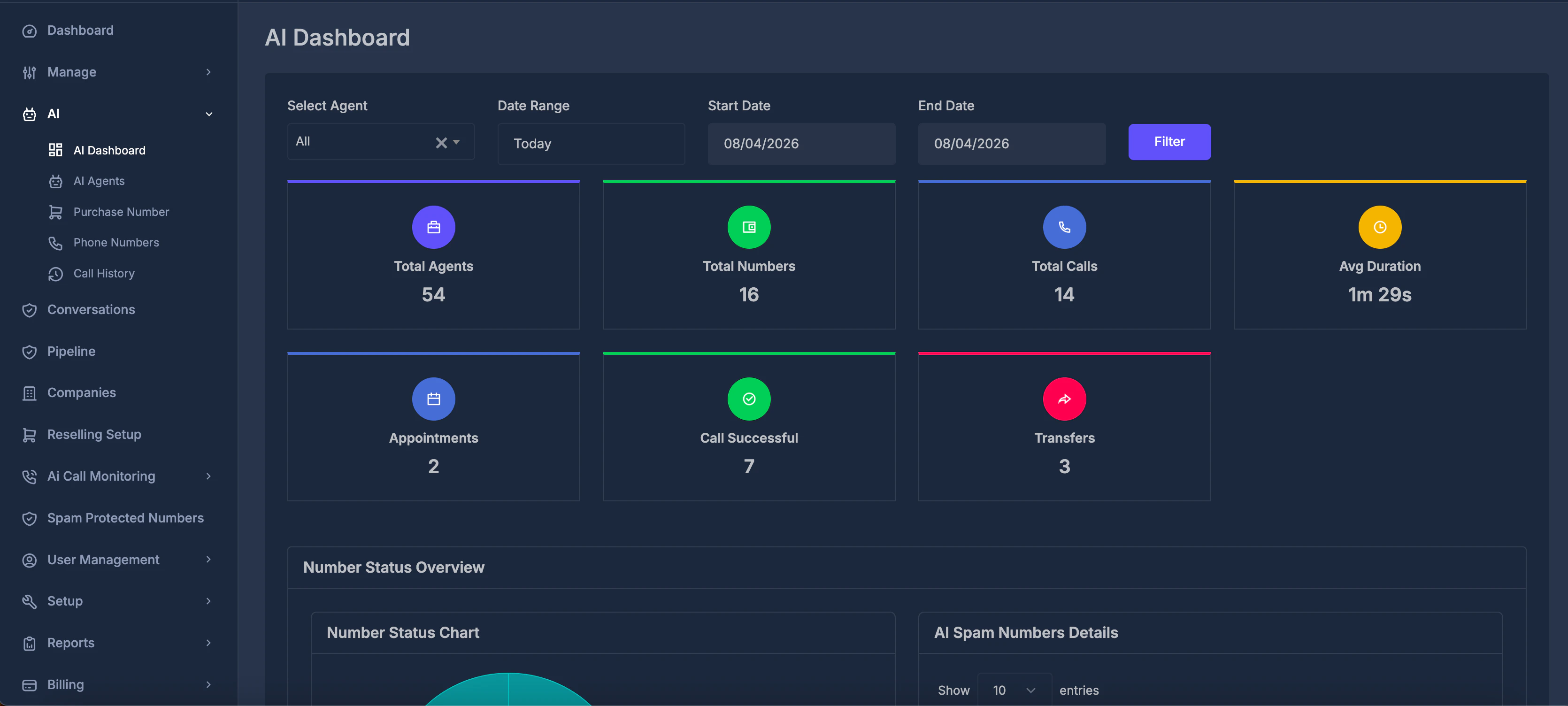
🧰 Filters (top row)
This row controls which agent and which date range the overview uses.
- All — data for every AI agent combined.
- Choosing a named agent limits the overview to that agent’s calls and metrics.
- Changing the agent usually refreshes the overview automatically; if not, press Filter.
- If you choose Custom dates, the Start Date and End Date fields become active. Set your range, then press Filter.
- For other presets, start and end dates are set for you and those fields stay inactive; the overview may refresh on its own.
- Used only with Custom dates.
- Charts and summary cards follow the period you define here once you apply the filter.
- Use this after changing dates or when the screen does not refresh by itself. It updates all related numbers and charts for your current choices.
📈 Summary cards
Each card shows one key figure. Hovering (or focusing) on a card may show a short explanation.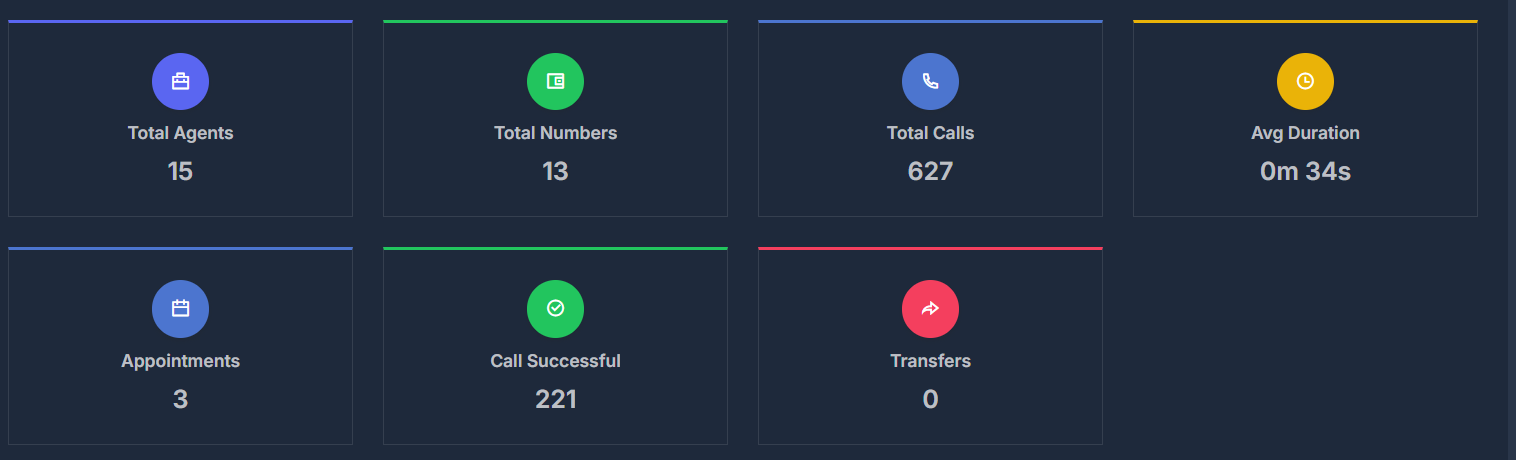
- The number of all AI agents in your account, whether active or inactive.
- This count does not depend on the date filter; it describes your overall setup.
- The total count of phone numbers used with your AI setup.
- One agent can have more than one number.
- All calls in the selected date range and selected agent scope, including inbound and outbound.
- The average length of calls in that period, shown in minutes and seconds.
- Calls where an appointment date and time was recorded.
- Clicking this card opens the Appointment Details panel .
- Calls marked as successful (yes).
- Calls that ended with a transfer to another destination.
🚦 Number Status Overview
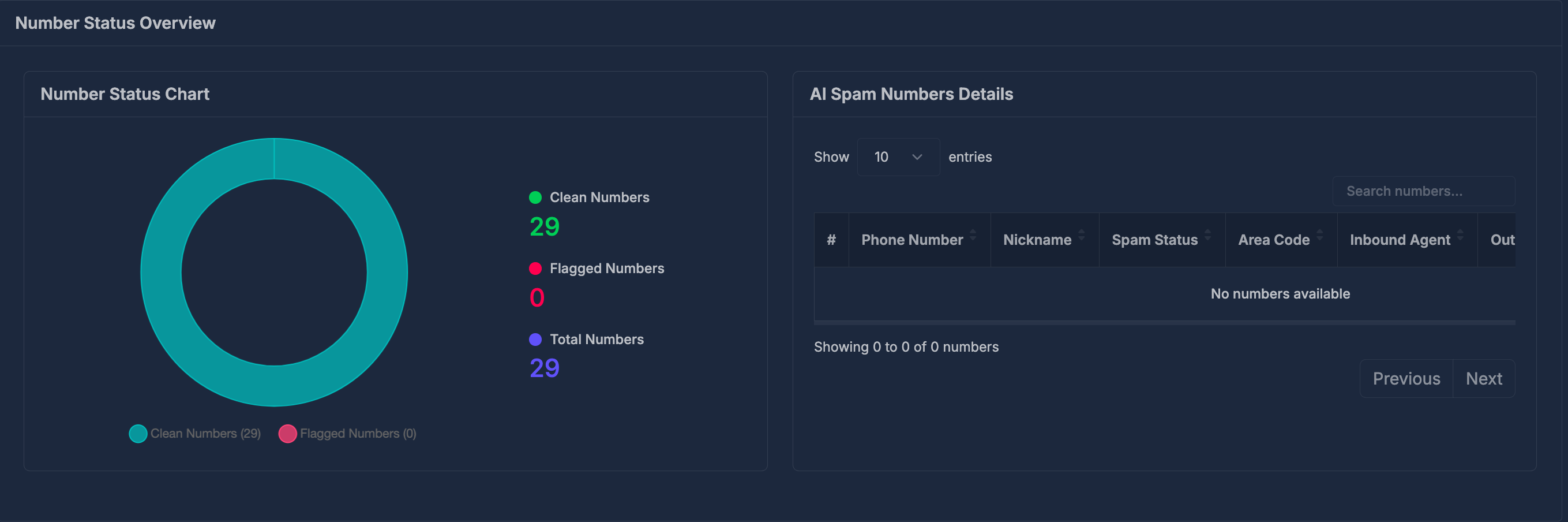
This section focuses on spam or risk status of your numbers. It reflects the current status of numbers more than a single call date. 📊 Number Status Chart- A chart comparing Clean and Flagged numbers.
- Counts shown beside the chart:
- Clean Numbers
- Flagged Numbers
- Total Numbers (overall count used in this view)
📊 Call Analytics
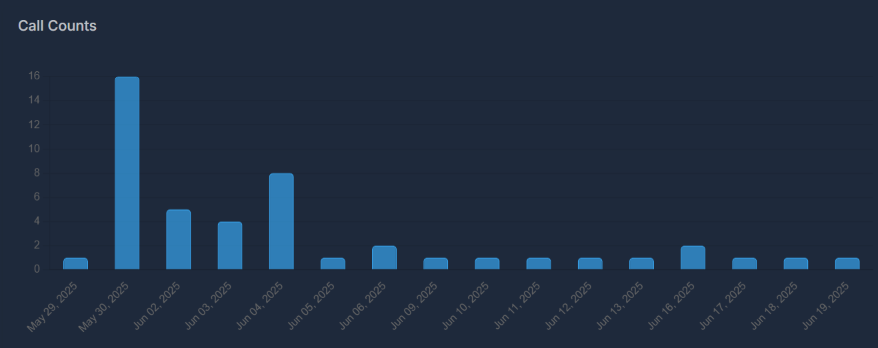
Charts in this section use your selected date range and agent. 📆 Call Counts- How many calls occurred on each day across the period.
- Share of calls marked successful, unsuccessful, or unknown (ring-style chart).
- How many calls were inbound, outbound, or web.
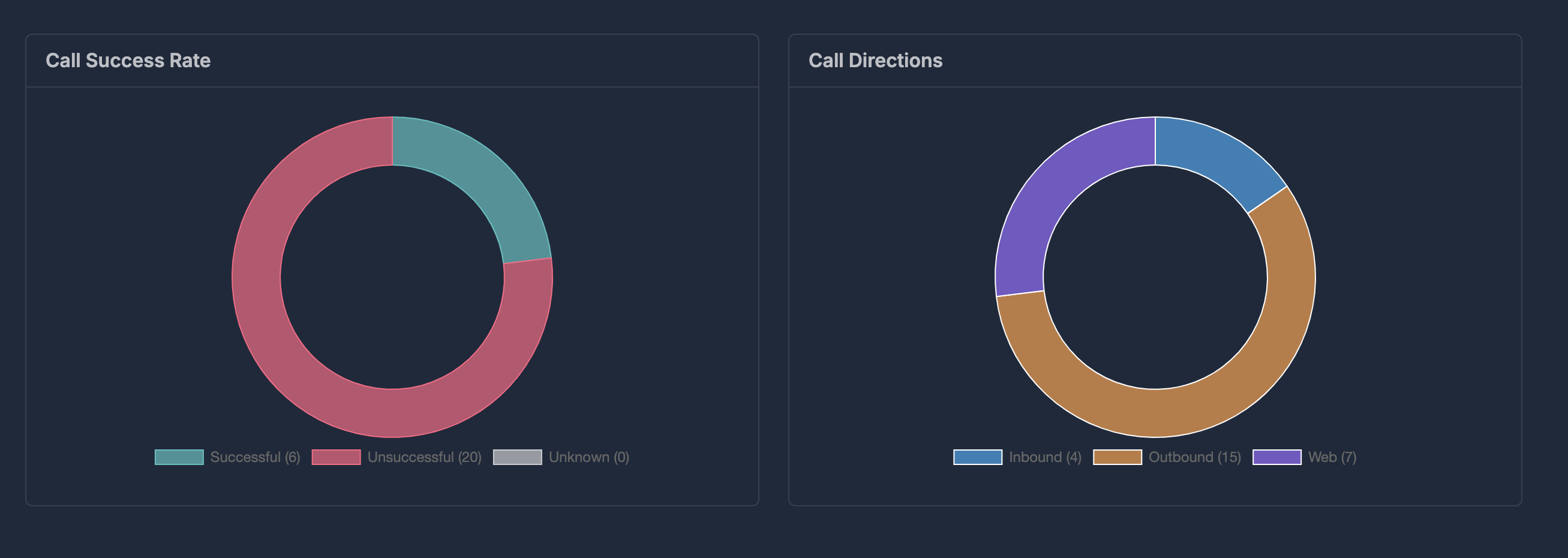
- Why each call ended — for example caller hung up, assistant hung up, transfer, voicemail reached, busy line, no answer, or other connection or system situations. Counts are shown per reason type.
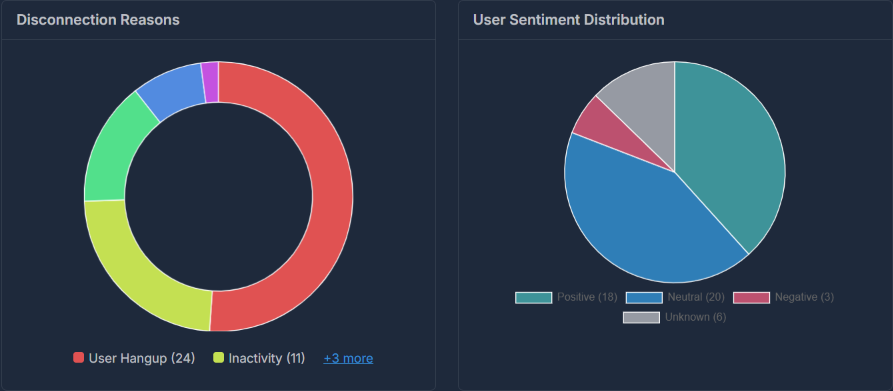
- How calls are split across Positive, Neutral, Negative, and Unknown sentiment.
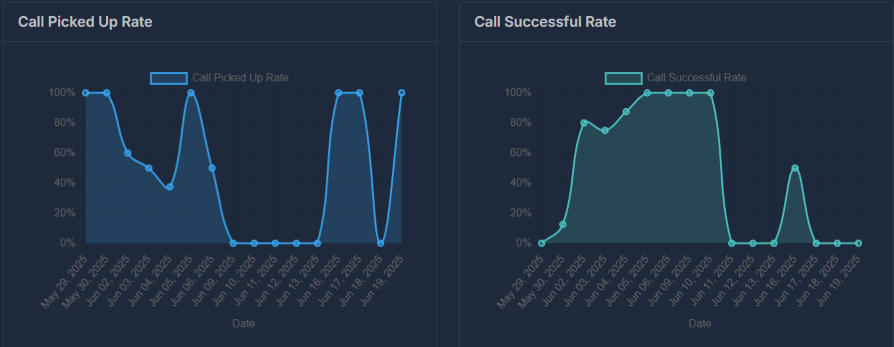
- Over time, the percentage of calls where the end reason indicates a connected conversation (for example caller hangup, assistant hangup, or transfer) versus all calls.
- Over time, the percentage of calls marked successful.
- Over time, the percentage of calls that ended in a transfer.
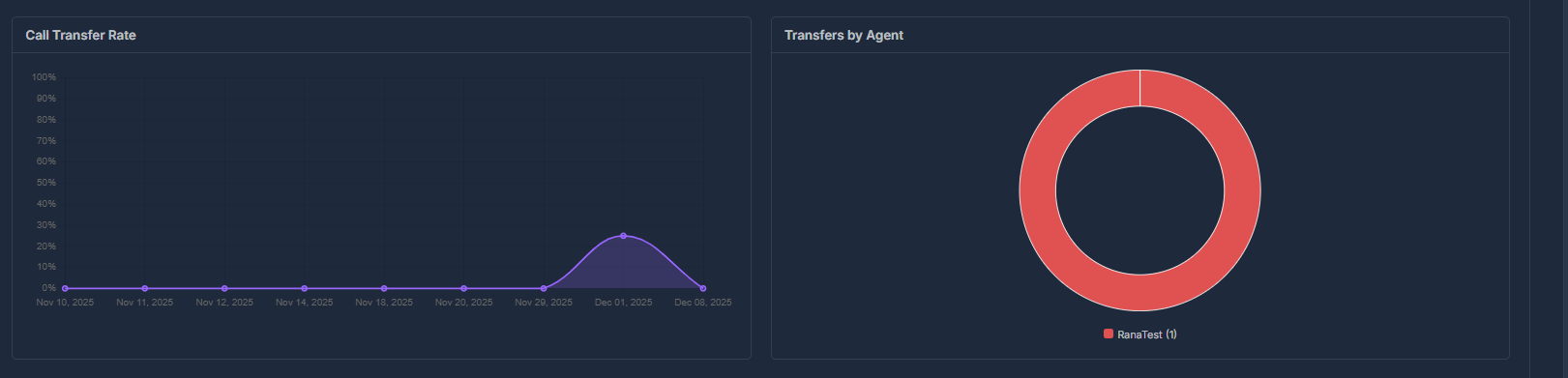
- Which AI agent transferred calls and how many times.

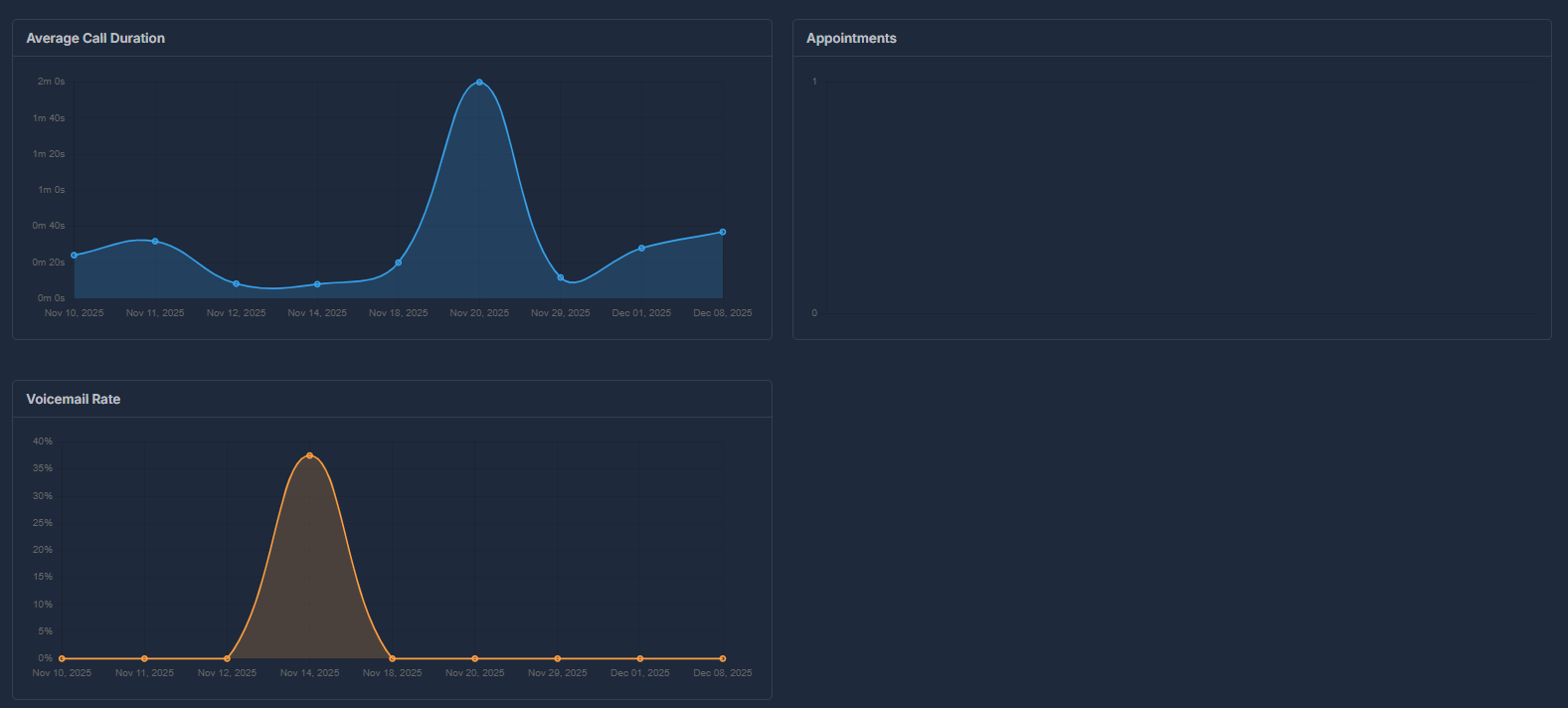
- Average call length by day over the period.
- Trend of appointment-related activity by day.
- Percentage of calls that reached voicemail.
📆 Appointment Details Panel
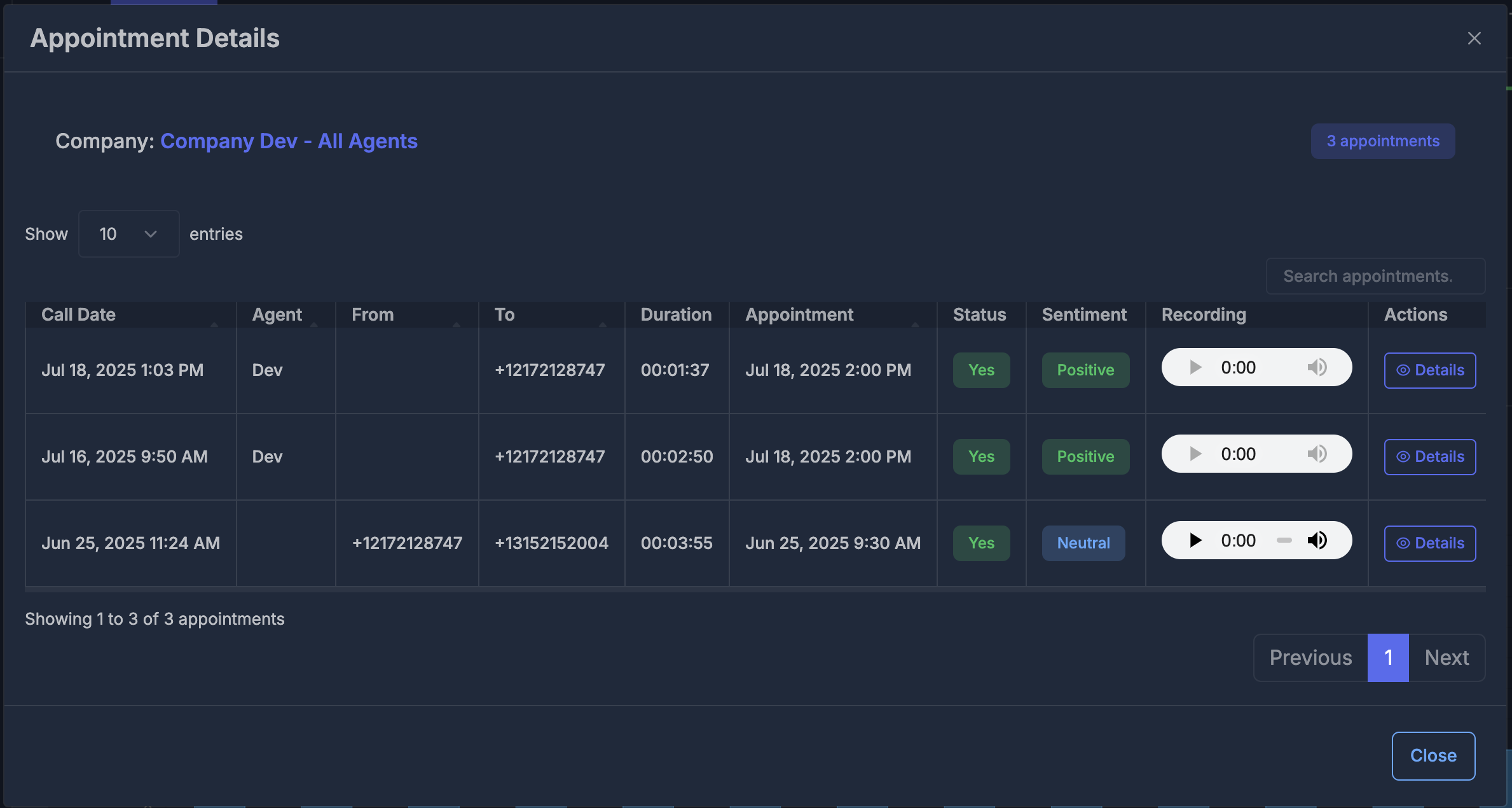
This panel appears when you click on the Appointments summary card.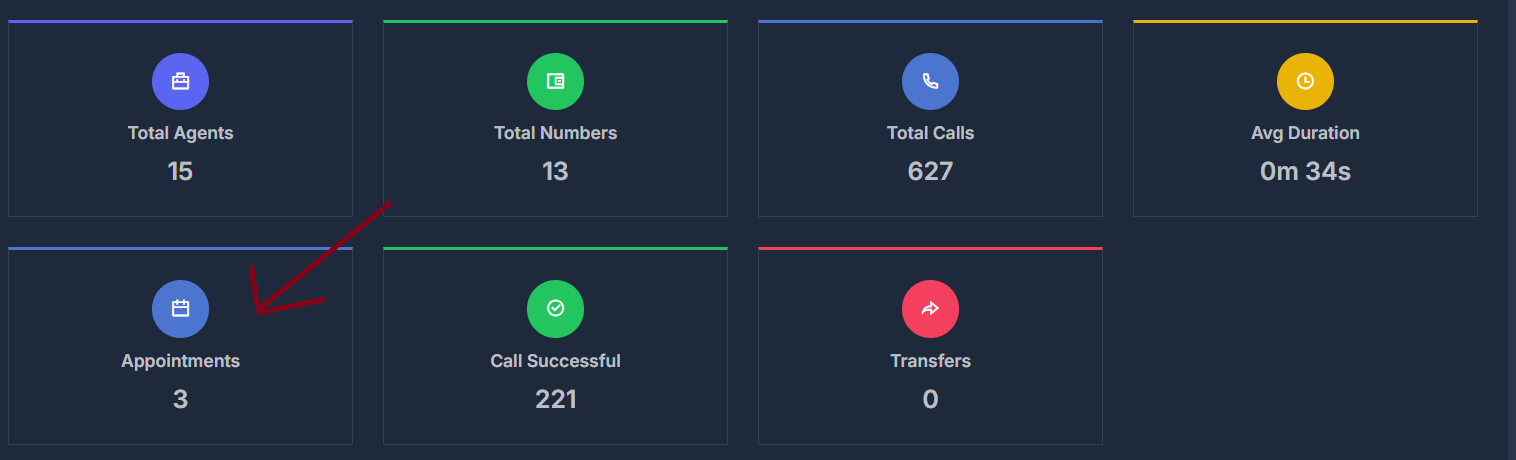
- Displays the company name and the total number of appointments at the top.
- The table usually includes these columns:
- Call Date — date and time of the call
- Agent — AI agent managing the call
- From / To — caller and recipient numbers
- Duration — call length
- Appointment — scheduled appointment time
- Status — was the call successful
- Sentiment — detected sentiment
- Recording — audio player if there’s a recording
- Actions — Details option for more information
📞 Call Details Panel
This panel opens when you select Details on a call entry.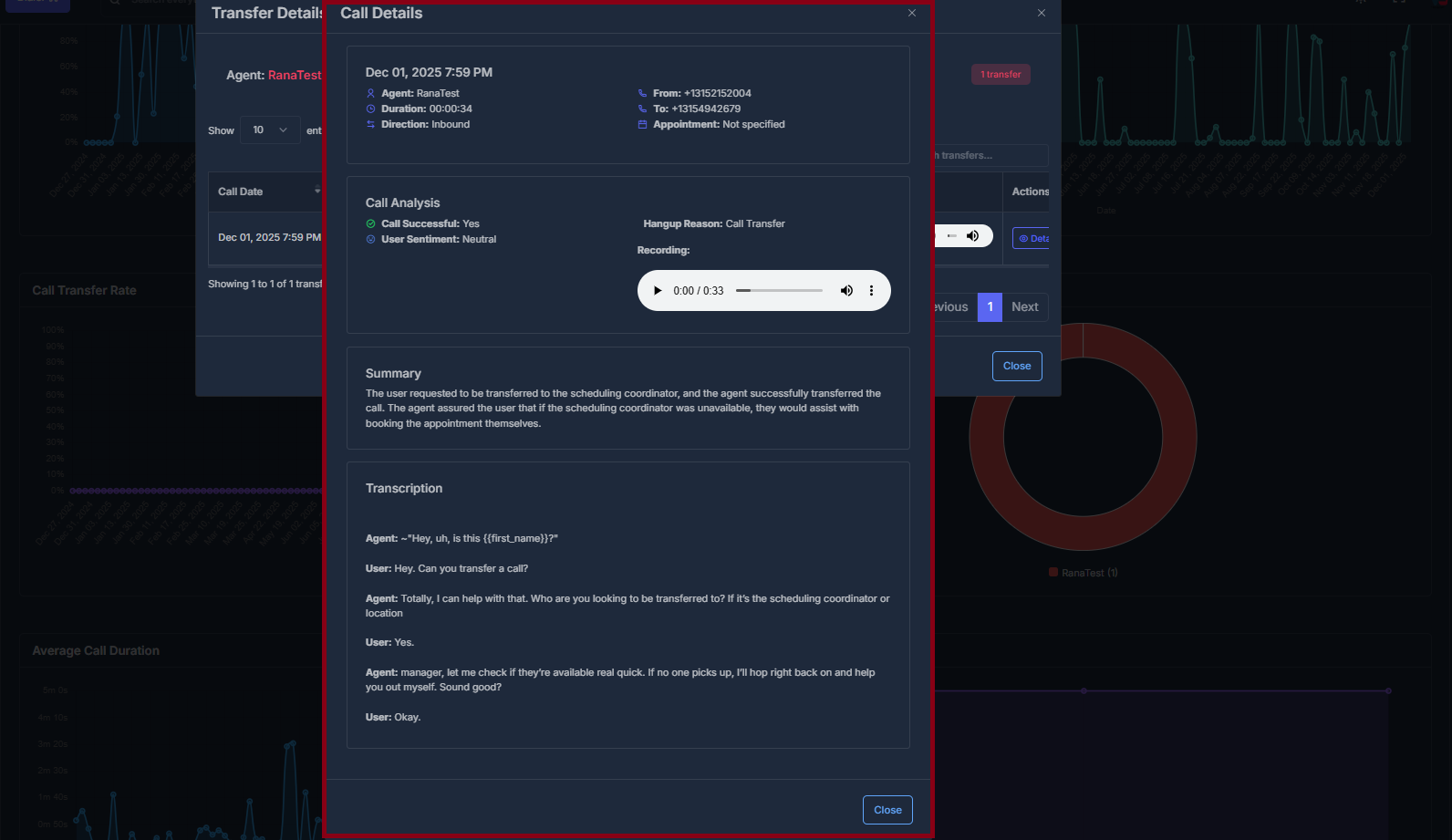
- Displays: date and time, Agent, Duration, and Direction (inbound, outbound, or web).
- From and To phone numbers.
- Appointment field—shows time if booked, or “not specified.”
- Call Analysis section: indicates success, user sentiment, and Hangup reason.
- Recording is available with playback controls if there’s an audio file.
- If a Summary or Transcription exists, these appear in their own sections; otherwise, they are hidden.
🔀 Transfer Details Panel
This panel offers an in-depth view of all transferred calls within the relevant workflow.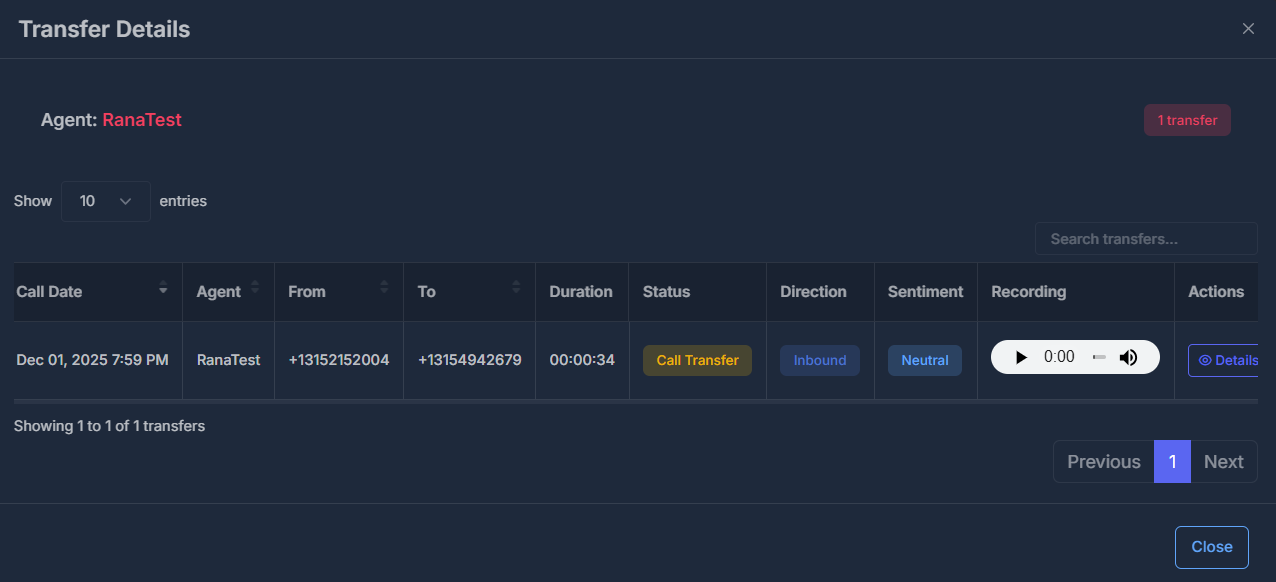
- Shows the Agent’s name and total number of transfers at the top.
- The table lists: Call Date, Agent, From, To, Duration, Status, Direction, Sentiment, Recording, and Actions (Details).