> ## Documentation Index
> Fetch the complete documentation index at: https://docs-old.aisync.link/llms.txt
> Use this file to discover all available pages before exploring further.
# Call Reports
> User guide for Reports → Call: filters, call table columns, search, and export.
# 📞 Call Report (Reports → Call)
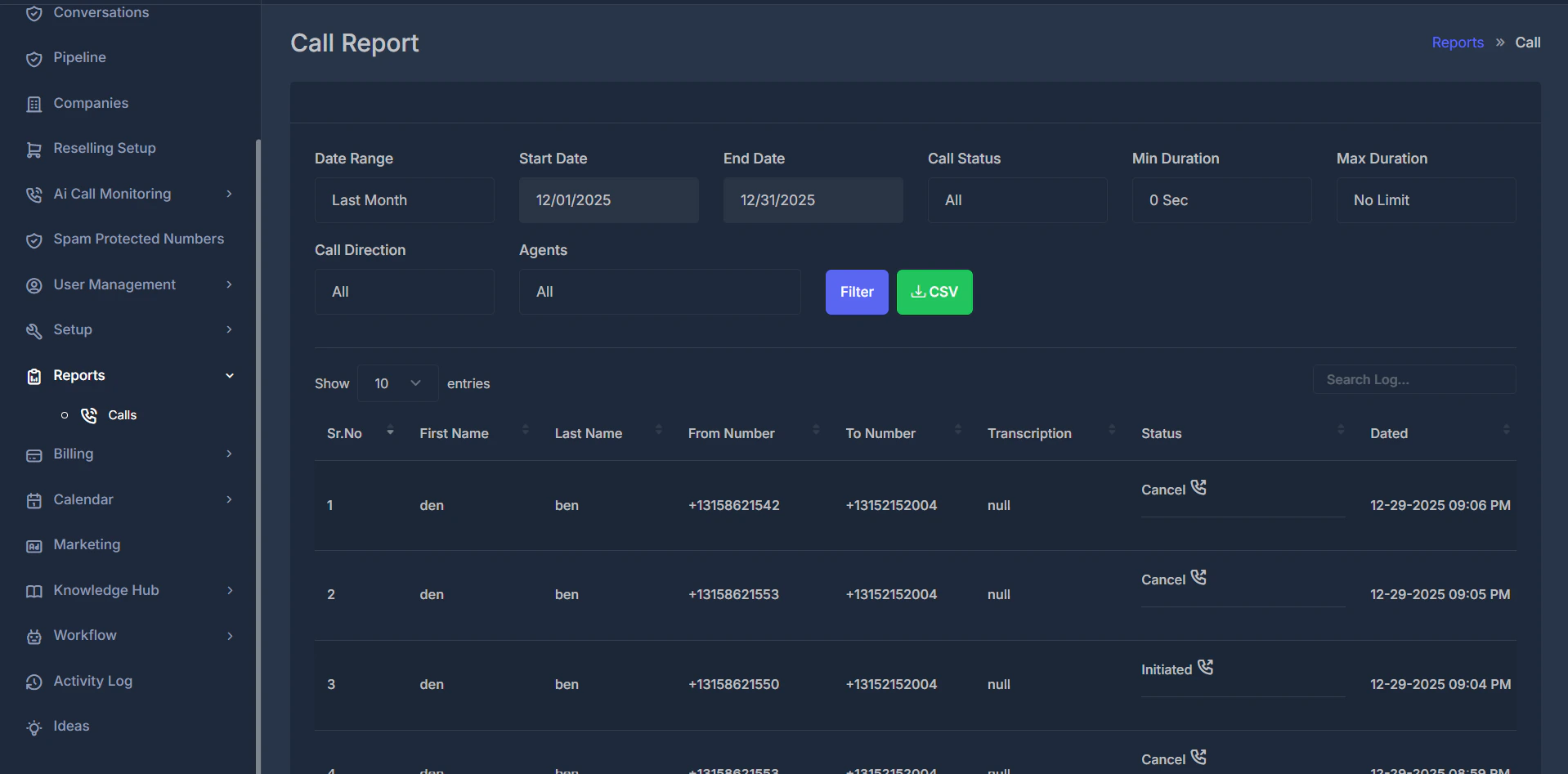
The **Call** option under **Reports** is where you review **phone calls** for your organization: who was involved, numbers, outcomes, length, and when each call happened. Everything below is about that **Call** report only.
 **👀 What you see here**
**Phone calls** show in a table—**one row per call**. The table updates when you change filters and apply them, or when you change the date range (where that refreshes on its own).
At the top you pick **which time range** and **which calls** matter. Each row below is **one call** that matches those choices.
## 🛠️ Filters
**👀 What you see here**
**Phone calls** show in a table—**one row per call**. The table updates when you change filters and apply them, or when you change the date range (where that refreshes on its own).
At the top you pick **which time range** and **which calls** matter. Each row below is **one call** that matches those choices.
## 🛠️ Filters
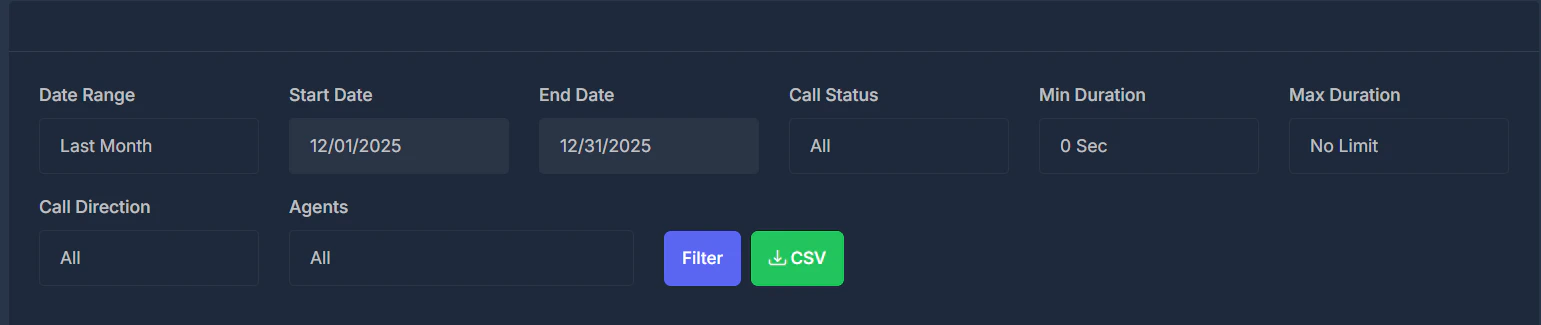 **🗓️ Date range**
Controls how **Start Date** and **End Date** are filled:
* **Custom dates** — You enter **Start Date** and **End Date** yourself; those fields are editable.
* **Presets** (*Today*, *Yesterday*, *This week*, *Last 7 days*, *This month*, *Last month*, and similar) — The dates are set for you and stay fixed for that preset.
If you are **not** on custom dates, changing the date range refreshes the **calls** shown. On **custom dates**, set start and end, then use **Filter** (or another control that refreshes).
Call times use **your account time zone**, so “today” matches your local calendar day.
**📅 Start date and end date**
Work with **Date range**. They set the **from–to** window for **calls** in the table. Editable only when **Custom dates** is selected.
**✅ Call status**
Limits **calls** to one outcome, or shows **all** outcomes:
* **All** — Every outcome.
* **Answered**, **Completed**, **Busy**, **No-answer**, **Failed**, **Missed Call**, **Cancel** — Only **calls** with that outcome.
Pick a value and apply it (for example **Filter**, or change the date range where it auto-refreshes).
**⏱️ Minimum duration**
Keeps **calls** whose **length** is **at least** what you select (from zero up to two hours). Shorter **calls** are hidden—useful when you only care about **calls** that ran long enough.
**⏳ Maximum duration**
Optional upper cap on length:
* **No limit** — No maximum.
* Any other value — **Calls** **longer** than that are excluded.
Together with minimum duration, you can focus on **calls** in a certain length range.
**🔄 Call direction**
* **All** — Incoming and outgoing **calls**.
* **Inbound** — **Calls** you received.
* **Outbound** — **Calls** you placed.
**👤 Agents**
Shows **calls** for **one** person, or—where the menu includes it—**everyone** (**All**). The names are people who can place or receive **calls** in your setup.
If the team is not set up, you may see a single placeholder instead of names.
**🔎 Filter**
Applies your choices and reloads the **call** table. Use it after changing something that does not refresh by itself (for example **custom** start and end dates).
**💾 Download (export)**
Saves a spreadsheet file using the **same** choices as the Call Report (dates, status, duration limits, direction, agent). Pick a wide date range to download your **whole** call history; large downloads take a little longer but are not cut short.
Each row has: date, first and last name, from and to numbers, direction, status, **outcome** (for example *Connected*, *Voicemail*, *Screened*), duration, talk seconds, who answered, a recording link, and the call's **summary** and **full transcript**. It opens cleanly in Excel and Google Sheets.
Coaching tip: filter to one rep and a week, download, and read the transcripts of their longest calls first. That is where the objections and the wins are.
## 📋 What each column means (calls)
**🗓️ Date range**
Controls how **Start Date** and **End Date** are filled:
* **Custom dates** — You enter **Start Date** and **End Date** yourself; those fields are editable.
* **Presets** (*Today*, *Yesterday*, *This week*, *Last 7 days*, *This month*, *Last month*, and similar) — The dates are set for you and stay fixed for that preset.
If you are **not** on custom dates, changing the date range refreshes the **calls** shown. On **custom dates**, set start and end, then use **Filter** (or another control that refreshes).
Call times use **your account time zone**, so “today” matches your local calendar day.
**📅 Start date and end date**
Work with **Date range**. They set the **from–to** window for **calls** in the table. Editable only when **Custom dates** is selected.
**✅ Call status**
Limits **calls** to one outcome, or shows **all** outcomes:
* **All** — Every outcome.
* **Answered**, **Completed**, **Busy**, **No-answer**, **Failed**, **Missed Call**, **Cancel** — Only **calls** with that outcome.
Pick a value and apply it (for example **Filter**, or change the date range where it auto-refreshes).
**⏱️ Minimum duration**
Keeps **calls** whose **length** is **at least** what you select (from zero up to two hours). Shorter **calls** are hidden—useful when you only care about **calls** that ran long enough.
**⏳ Maximum duration**
Optional upper cap on length:
* **No limit** — No maximum.
* Any other value — **Calls** **longer** than that are excluded.
Together with minimum duration, you can focus on **calls** in a certain length range.
**🔄 Call direction**
* **All** — Incoming and outgoing **calls**.
* **Inbound** — **Calls** you received.
* **Outbound** — **Calls** you placed.
**👤 Agents**
Shows **calls** for **one** person, or—where the menu includes it—**everyone** (**All**). The names are people who can place or receive **calls** in your setup.
If the team is not set up, you may see a single placeholder instead of names.
**🔎 Filter**
Applies your choices and reloads the **call** table. Use it after changing something that does not refresh by itself (for example **custom** start and end dates).
**💾 Download (export)**
Saves a spreadsheet file using the **same** choices as the Call Report (dates, status, duration limits, direction, agent). Pick a wide date range to download your **whole** call history; large downloads take a little longer but are not cut short.
Each row has: date, first and last name, from and to numbers, direction, status, **outcome** (for example *Connected*, *Voicemail*, *Screened*), duration, talk seconds, who answered, a recording link, and the call's **summary** and **full transcript**. It opens cleanly in Excel and Google Sheets.
Coaching tip: filter to one rep and a week, download, and read the transcripts of their longest calls first. That is where the objections and the wins are.
## 📋 What each column means (calls)
 **#️⃣ Sr. No.**
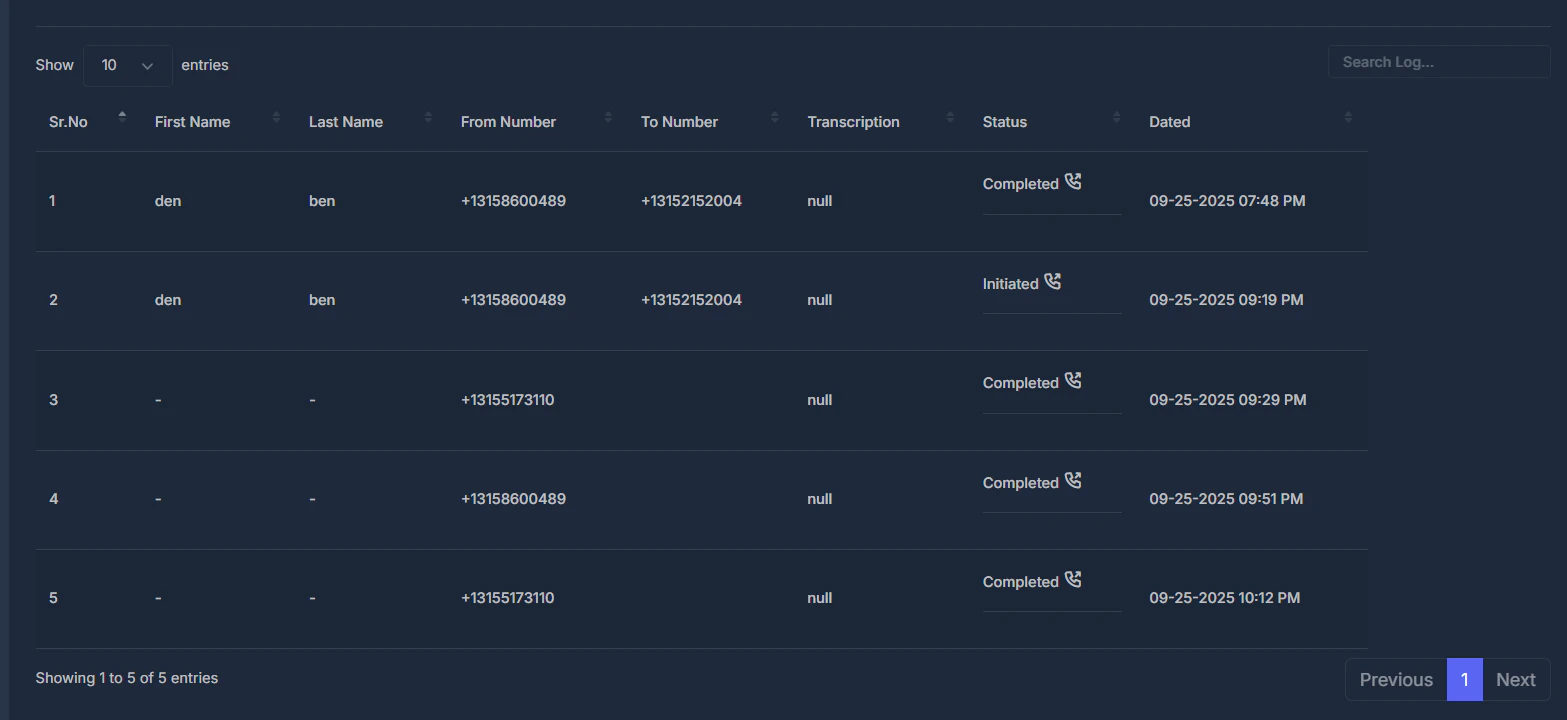
A reference number for the row. Newer calls appear higher up.
**🧑 First name / Last name**
The **contact** linked to that **call**, when known. A dash means the name was not available.
**📞 From number**
Where the **call** came from (caller side).
**☎️ To number**
Where the **call** went (destination).
**🎧 Recording & Transcript**
What the call left behind:
* A one-line **summary** of the conversation, when there is one.
* A **Recording** button when the call was recorded.
* A **Transcript** button when the conversation was transcribed.
Either button opens the call in a window with the summary, an audio player and the **full transcript**. Use **Copy** to paste the transcript into coaching notes. Reps see only their own calls; managers see their team; owners see everyone.
Transcripts are saved for calls from **25 September 2026** onward. Earlier calls
have recordings but no transcript, because the words were never stored.
**🏷️ Status**
**How the call ended**, plus:
* A small **incoming** or **outgoing** marker for quick direction.
* For completed calls with a **recording**, a **player** so you can listen without leaving the Call Report.
**#️⃣ Sr. No.**
A reference number for the row. Newer calls appear higher up.
**🧑 First name / Last name**
The **contact** linked to that **call**, when known. A dash means the name was not available.
**📞 From number**
Where the **call** came from (caller side).
**☎️ To number**
Where the **call** went (destination).
**🎧 Recording & Transcript**
What the call left behind:
* A one-line **summary** of the conversation, when there is one.
* A **Recording** button when the call was recorded.
* A **Transcript** button when the conversation was transcribed.
Either button opens the call in a window with the summary, an audio player and the **full transcript**. Use **Copy** to paste the transcript into coaching notes. Reps see only their own calls; managers see their team; owners see everyone.
Transcripts are saved for calls from **25 September 2026** onward. Earlier calls
have recordings but no transcript, because the words were never stored.
**🏷️ Status**
**How the call ended**, plus:
* A small **incoming** or **outgoing** marker for quick direction.
* For completed calls with a **recording**, a **player** so you can listen without leaving the Call Report.
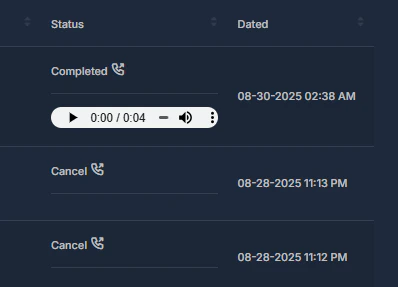 **🗓️ Dated**
When that **call** was logged, in **your** time zone.
## 🆕 What changed recently
**Every answered call now keeps its transcript and a short summary**, saved by
the phone system itself when the call ends, so nothing depends on the rep's
browser staying open.
**Read them here.** The old *Transcription* column showed text messages, which
are empty on calls. It is now **Recording & Transcript**, with a viewer for
each call.
**Download your full history.** The export now includes outcome, talk time,
the summary and the full transcript, and it no longer stops on large date
ranges.
**Recordings go to GoHighLevel.** If GoHighLevel is connected, each call's
recording now appears on the call in the contact's GoHighLevel conversation.
See [What's New](/go-live/changelog) for the full history.
This documentation is built and hosted on [Mintlify](https://mintlify.com), a developer documentation platform.
**🗓️ Dated**
When that **call** was logged, in **your** time zone.
## 🆕 What changed recently
**Every answered call now keeps its transcript and a short summary**, saved by
the phone system itself when the call ends, so nothing depends on the rep's
browser staying open.
**Read them here.** The old *Transcription* column showed text messages, which
are empty on calls. It is now **Recording & Transcript**, with a viewer for
each call.
**Download your full history.** The export now includes outcome, talk time,
the summary and the full transcript, and it no longer stops on large date
ranges.
**Recordings go to GoHighLevel.** If GoHighLevel is connected, each call's
recording now appears on the call in the contact's GoHighLevel conversation.
See [What's New](/go-live/changelog) for the full history.
This documentation is built and hosted on [Mintlify](https://mintlify.com), a developer documentation platform.