> ## Documentation Index
> Fetch the complete documentation index at: https://docs-old.aisync.link/llms.txt
> Use this file to discover all available pages before exploring further.
# Transfer Lines (live transfer to your team)
> Send a live caller to your team. AI Sync rings your reps in waves, tells them who is calling, and connects the first one to press 1.
A **transfer line** is a team phone line for live transfers. When an AI agent or a rep transfers a caller to it, AI Sync:
1. Rings a group of your reps at once, on their cell phone or in the dialer.
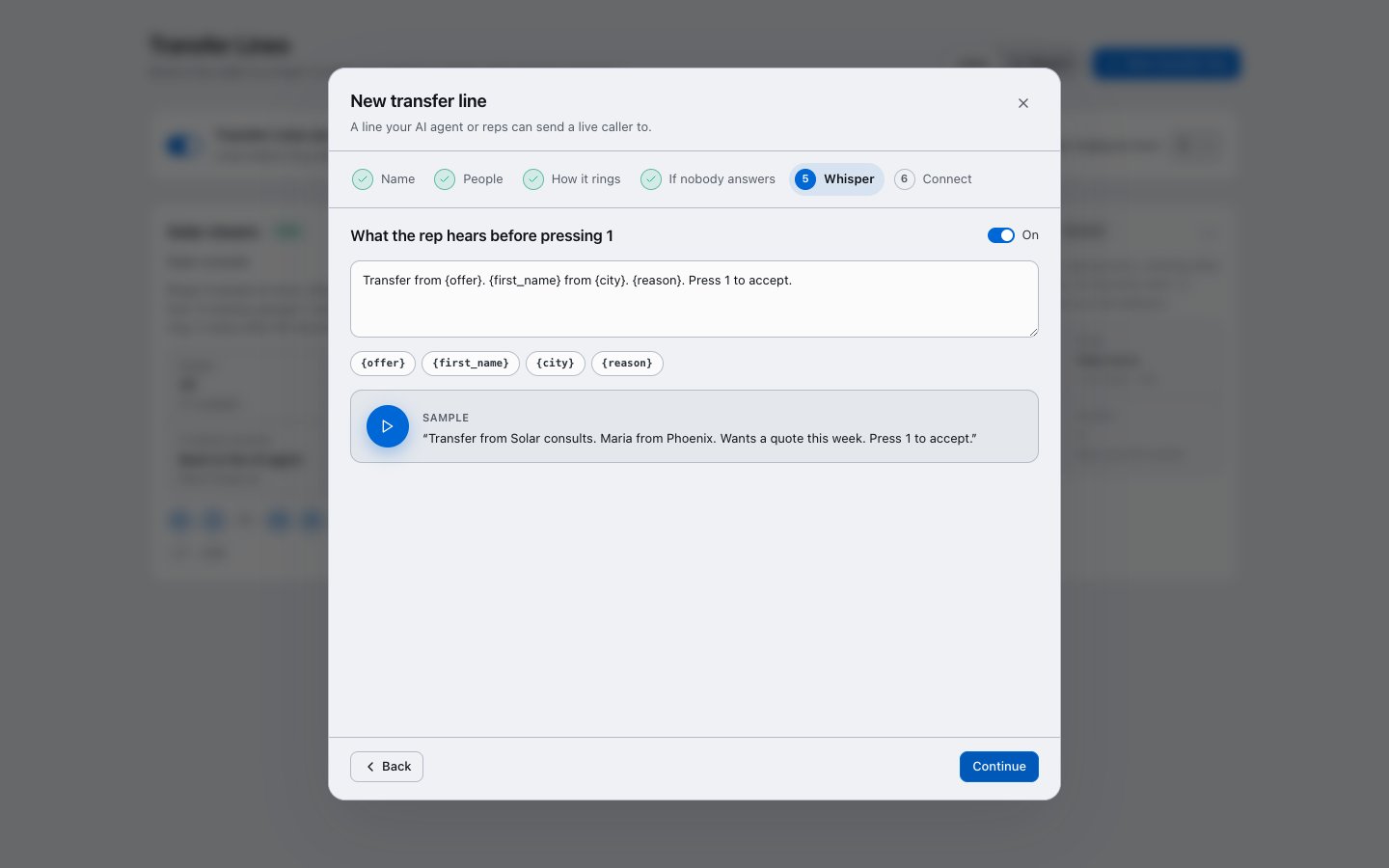
2. Plays each rep a short whisper first: *"Transfer from Solar consults. Maria from Phoenix. Wants a quote this week. Press 1 to accept."*
3. Connects the **first rep to press 1**. Everyone else stops ringing.
4. Rings the next group if nobody takes it.
5. Runs your fallback if nobody takes it in time. The caller is **never hung up on**.
Press 1 is required on every cell phone. A rep's voicemail can never grab a live caller.
## Turn it on
Transfer Lines is switched on per account. An account owner turns it on from **Dialer → More → Transfer Lines** with the switch at the top. Ask your AI Sync contact if you don't see the menu item.
Use **Most phones ringing at once** (up to 10) to set the largest group any line can ring together.
## Create a line
Open **Dialer → More → Transfer Lines** and click **New transfer line**. Setup takes six short steps.
Give the line a name, for example *Solar closers*. Then give it an **offer**, for example *Solar consults*. Reps hear the offer first, so they know what kind of caller is coming.
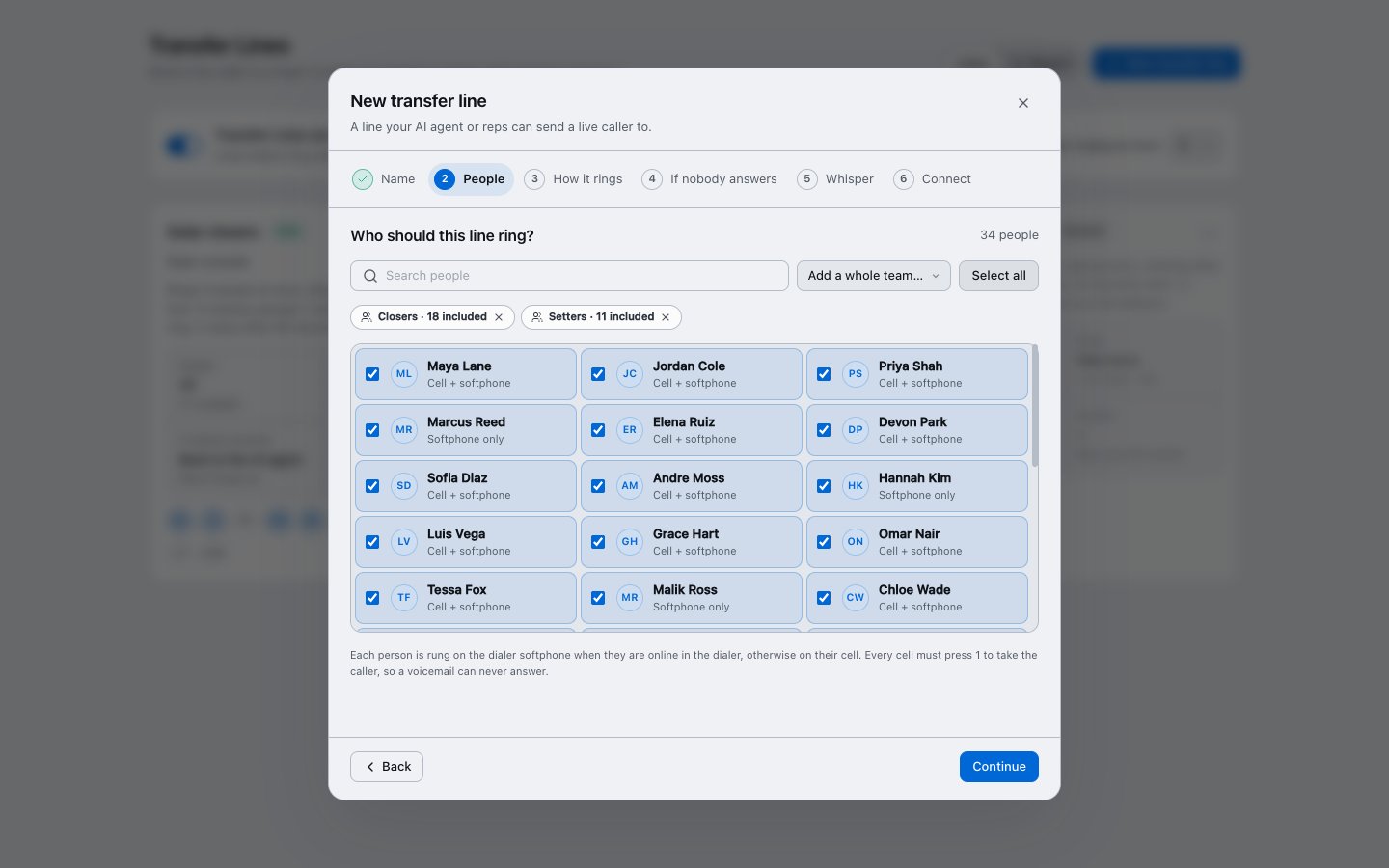
Pick who the line rings. Use **Add a whole team** to add everyone on a team at once. The count shows unique people, so someone on two teams is counted once.
Each person is rung in the dialer when they're online there, and on their cell when they aren't.
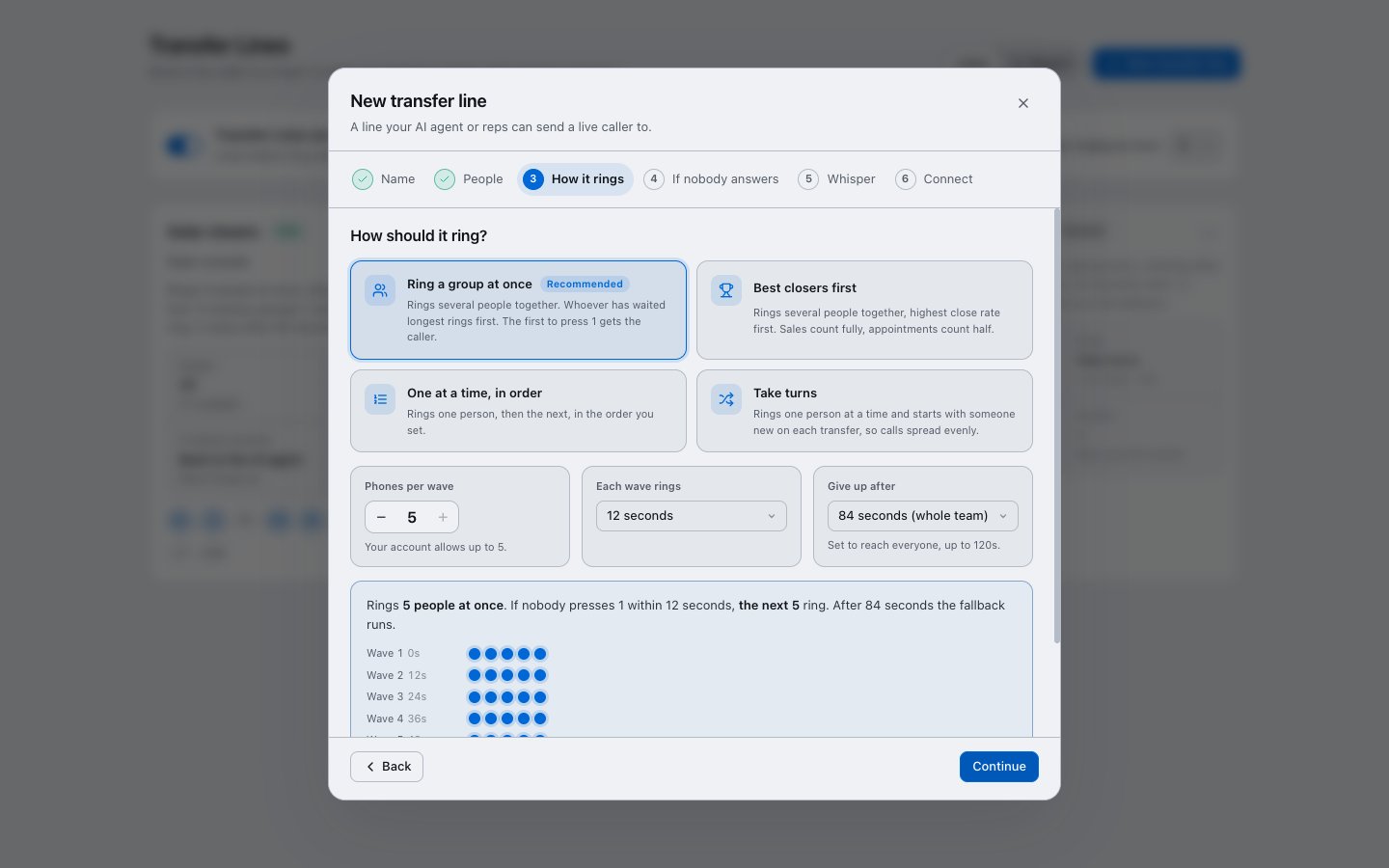
 Choose how the line rings:
| Option | What happens |
| - | - |
| **Ring a group at once** (recommended) | Several people ring together. Whoever has waited longest rings first. |
| **Best closers first** | Several people ring together, highest close rate first. A sale counts fully, an appointment counts half. |
| **One at a time, in order** | One person rings at a time, in the order you set. |
| **Take turns** | One person rings at a time, starting with someone new each time, so calls spread evenly. |
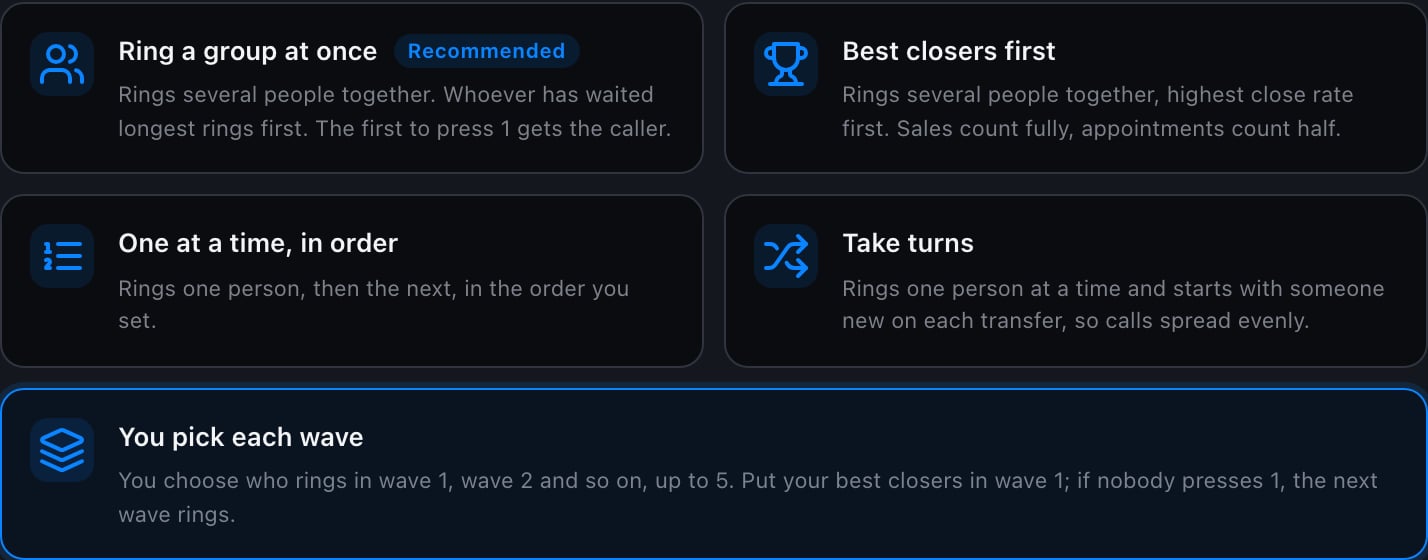
| **You pick each wave** | You choose who rings in wave 1, wave 2 and so on, up to 5 waves. See [Pick who rings in each wave](#pick-who-rings-in-each-wave). |
**Phones per wave** sets how many ring together. **Each wave rings** sets how long before the next group starts.
**Give up after** defaults to enough time to ring the whole team once, up to 120 seconds. If the limit is too short to reach everyone, a warning tells you how many people it reaches.
Choose how the line rings:
| Option | What happens |
| - | - |
| **Ring a group at once** (recommended) | Several people ring together. Whoever has waited longest rings first. |
| **Best closers first** | Several people ring together, highest close rate first. A sale counts fully, an appointment counts half. |
| **One at a time, in order** | One person rings at a time, in the order you set. |
| **Take turns** | One person rings at a time, starting with someone new each time, so calls spread evenly. |
| **You pick each wave** | You choose who rings in wave 1, wave 2 and so on, up to 5 waves. See [Pick who rings in each wave](#pick-who-rings-in-each-wave). |
**Phones per wave** sets how many ring together. **Each wave rings** sets how long before the next group starts.
**Give up after** defaults to enough time to ring the whole team once, up to 120 seconds. If the limit is too short to reach everyone, a warning tells you how many people it reaches.
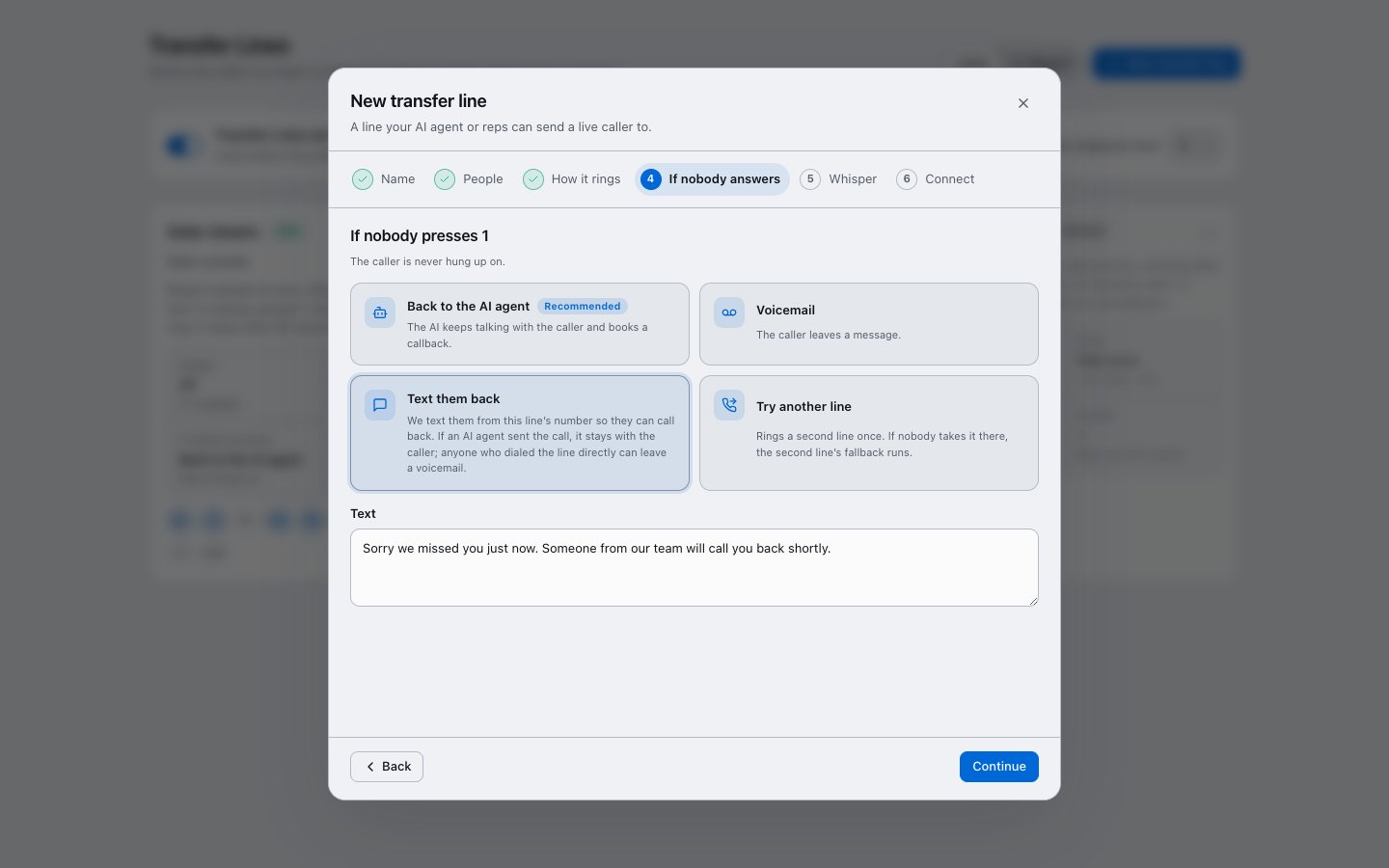
 Pick what happens when nobody presses 1:
* **Back to the AI agent** (recommended): the AI keeps talking with the caller and books a callback.
* **Voicemail**: the caller leaves a message.
* **Text them back**: they get a text from the line's number so they can call back.
* **Try another line**: rings a second line once.
Pick what happens when nobody presses 1:
* **Back to the AI agent** (recommended): the AI keeps talking with the caller and books a callback.
* **Voicemail**: the caller leaves a message.
* **Text them back**: they get a text from the line's number so they can call back.
* **Try another line**: rings a second line once.
 Edit what reps hear before pressing 1, then press play to hear a sample. You can use `{offer}`, `{first_name}`, `{city}` and `{reason}`. The reason comes from the AI agent's notes about the caller.
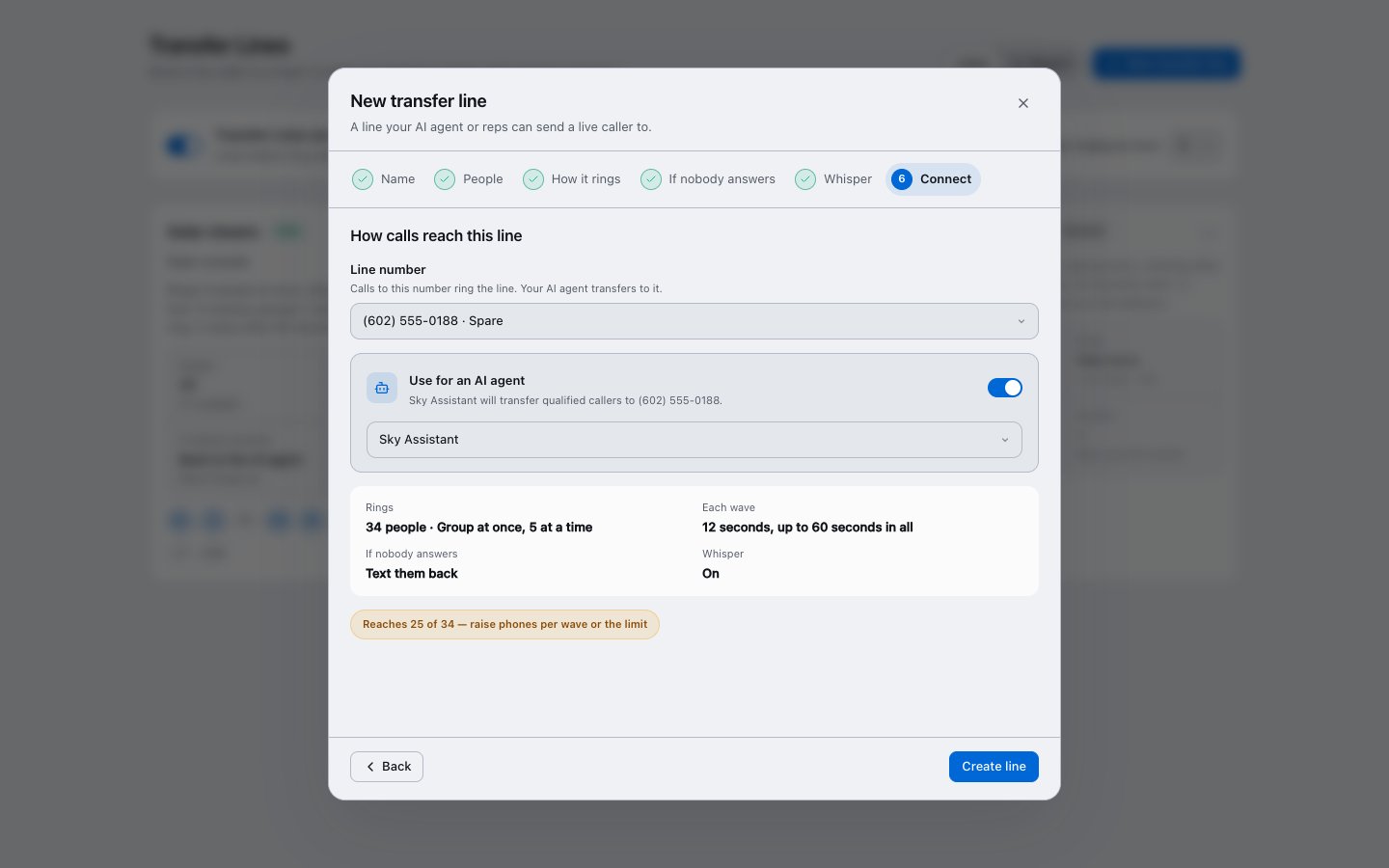
 Pick the **line number**, which is the number callers and AI agents transfer to.
To have an AI agent send qualified callers to this line, turn on **Use for an AI agent** and pick the agent.
Check the summary, then click **Create line**.
Pick the **line number**, which is the number callers and AI agents transfer to.
To have an AI agent send qualified callers to this line, turn on **Use for an AI agent** and pick the agent.
Check the summary, then click **Create line**.
 ## Pick who rings in each wave
Use this when you want your best closers to get the first shot at every transfer.
Open the line, go to **How it rings**, and pick **You pick each wave**.
## Pick who rings in each wave
Use this when you want your best closers to get the first shot at every transfer.
Open the line, go to **How it rings**, and pick **You pick each wave**.
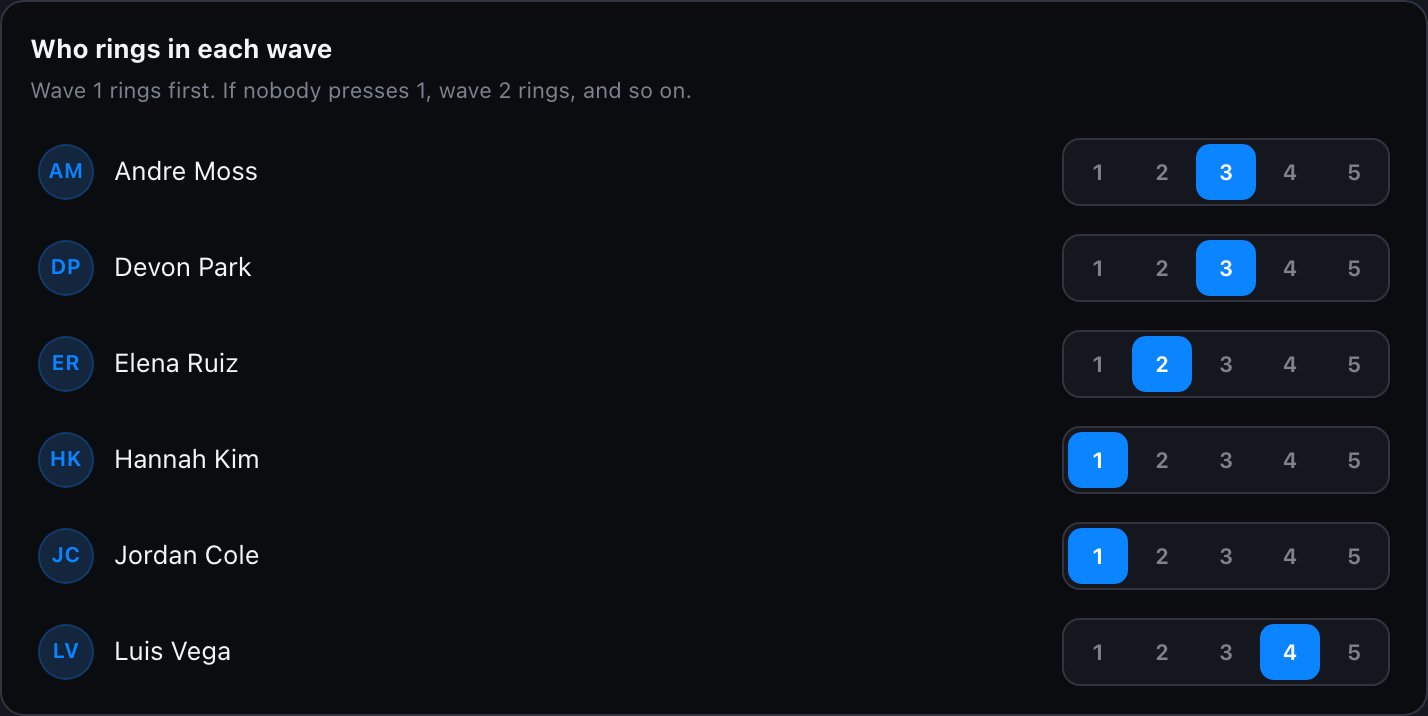
 Under **Who rings in each wave**, click **1** to **5** next to each person. Everyone starts in wave 1.
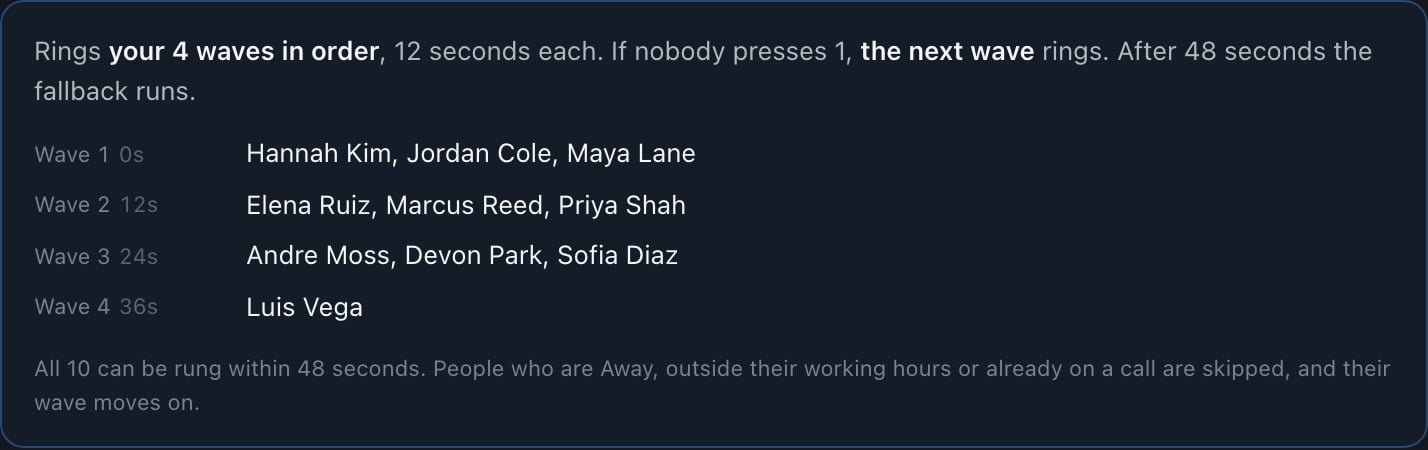
 **Each wave rings** sets how long a wave rings before the next one starts, for example 12 seconds. **Give up after** sets itself to cover all your waves.
The plan shows who rings in each wave and when each wave starts. Continue through the steps and click **Save changes**.
**Each wave rings** sets how long a wave rings before the next one starts, for example 12 seconds. **Give up after** sets itself to cover all your waves.
The plan shows who rings in each wave and when each wave starts. Continue through the steps and click **Save changes**.
 **How a call rings:**
1. Everyone in wave 1 rings at once.
2. If nobody presses 1 in time, wave 1 stops and wave 2 rings.
3. This repeats through your last wave, then the line's **If nobody answers** choice runs.
**Good to know:**
* Reps don't need the dialer open. Anyone who isn't in the dialer is rung on their cell and presses 1 to take the caller. They need a cell number on their profile.
* Someone who is **Away**, outside working hours, or already on a call is skipped. If a whole wave is skipped, the next wave rings right away.
* A wave can hold more people than your account rings at once. If it does, that wave rings in groups before the next wave starts.
## Big teams
A line can hold your whole sales floor. With 30 people and 5 phones per wave, AI Sync rings 5, then the next 5 every 12 seconds, until someone presses 1.
People are skipped automatically when they're:
* set to **Away**,
* outside their working hours, or
* already on a call.
Calls are paced to what each phone carrier accepts, so a big wave is never refused. This works on every carrier connected to AI Sync.
## For reps
* **Available / Away:** use the **Transfers** switch in the dialer header. When it's set to Away, no transfers ring you.
* **On your cell:** you hear the whisper. Press **1** to take the caller, or do nothing to let it pass.
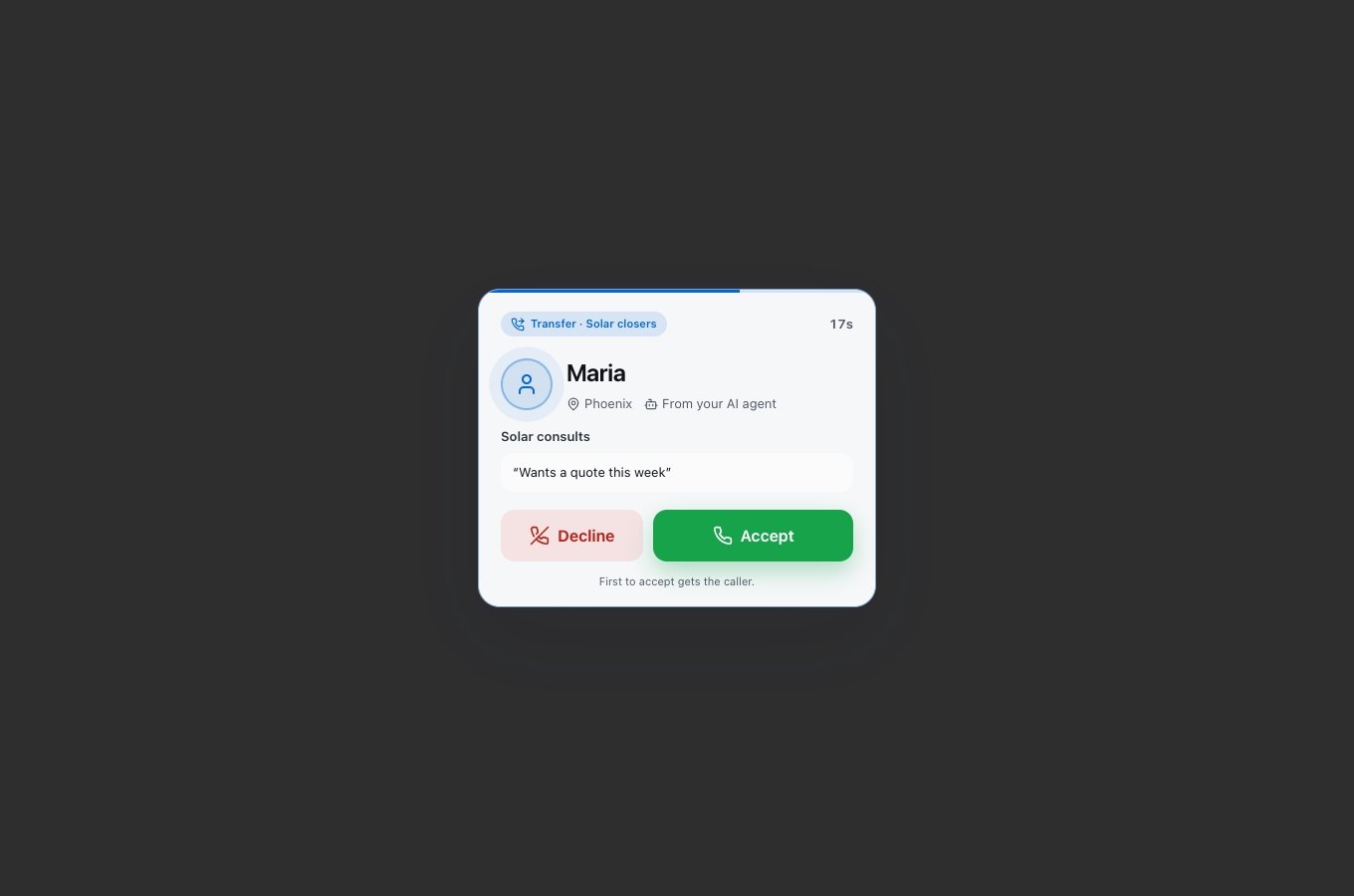
* **In the dialer:** a card shows the caller, their city, the offer and the reason, with **Accept** and **Decline**. The first to accept gets the caller.
**How a call rings:**
1. Everyone in wave 1 rings at once.
2. If nobody presses 1 in time, wave 1 stops and wave 2 rings.
3. This repeats through your last wave, then the line's **If nobody answers** choice runs.
**Good to know:**
* Reps don't need the dialer open. Anyone who isn't in the dialer is rung on their cell and presses 1 to take the caller. They need a cell number on their profile.
* Someone who is **Away**, outside working hours, or already on a call is skipped. If a whole wave is skipped, the next wave rings right away.
* A wave can hold more people than your account rings at once. If it does, that wave rings in groups before the next wave starts.
## Big teams
A line can hold your whole sales floor. With 30 people and 5 phones per wave, AI Sync rings 5, then the next 5 every 12 seconds, until someone presses 1.
People are skipped automatically when they're:
* set to **Away**,
* outside their working hours, or
* already on a call.
Calls are paced to what each phone carrier accepts, so a big wave is never refused. This works on every carrier connected to AI Sync.
## For reps
* **Available / Away:** use the **Transfers** switch in the dialer header. When it's set to Away, no transfers ring you.
* **On your cell:** you hear the whisper. Press **1** to take the caller, or do nothing to let it pass.
* **In the dialer:** a card shows the caller, their city, the offer and the reason, with **Accept** and **Decline**. The first to accept gets the caller.
 * **Sending a caller to a line:** in **Transfer Call**, choose **To Line** and pick the line.
Save each line's number in your phone as a contact, for example "AI Sync Transfers". Some phones silence unknown callers.
## Report
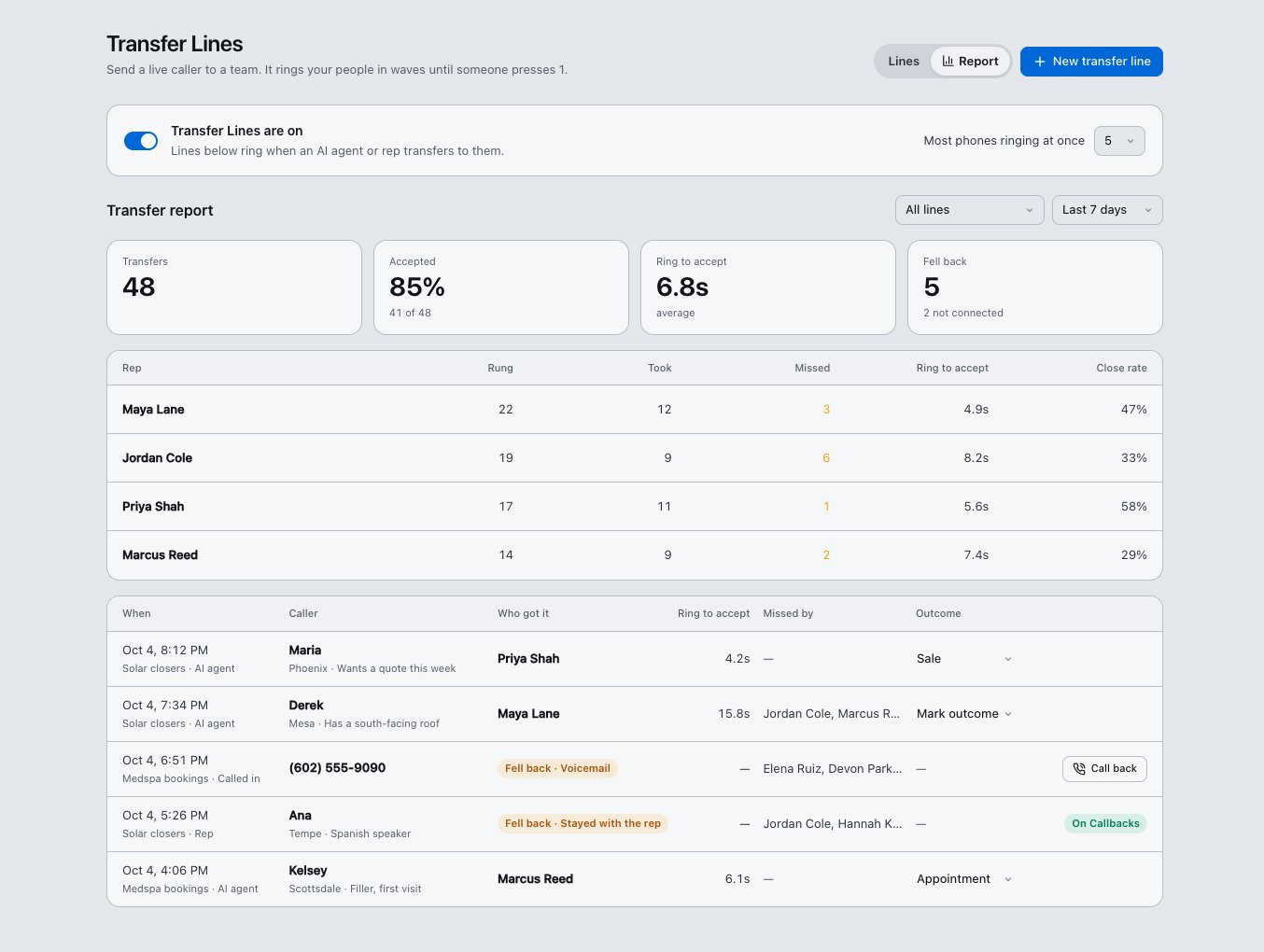
Click **Report** on the Transfer Lines page. It shows:
* transfers, accept rate and average time to accept;
* each rep's rings, takes, misses and close rate;
* every transfer with who got it, who missed it, and the outcome.
Mark an outcome (Sale, Appointment) to feed **Best closers first**. Missed transfers have a **Call back** button.
* **Sending a caller to a line:** in **Transfer Call**, choose **To Line** and pick the line.
Save each line's number in your phone as a contact, for example "AI Sync Transfers". Some phones silence unknown callers.
## Report
Click **Report** on the Transfer Lines page. It shows:
* transfers, accept rate and average time to accept;
* each rep's rings, takes, misses and close rate;
* every transfer with who got it, who missed it, and the outcome.
Mark an outcome (Sale, Appointment) to feed **Best closers first**. Missed transfers have a **Call back** button.
 ## Set it up with your AI assistant
If your AI assistant (for example Claude) is connected to AI Sync, you can ask it to do this for you:
* *"Create a transfer line called Solar closers for the Closers team, ring 5 at a time, and send it back to the AI if nobody answers."*
* *"Add Maya and Jordan to Solar closers."*
* *"Attach Solar closers to my Sky Assistant agent."*
* *"Show me last week's transfer report."*
* *"Set Solar closers to pick each wave, and put Maya and Jordan in wave 1."*
## Try it in 5 minutes
1. Create a line with yourself and one teammate. Use a spare number.
2. Save the line's number in both phones.
3. From a different phone, call the line's number.
4. Both phones ring. Each person hears the whisper. The first to press 1 is connected.
5. Call again and let nobody answer. The fallback runs, and the caller is not hung up on.
6. Open **Report** to see both calls.
## Troubleshooting
| What you see | What to do |
| - | - |
| No **Transfer Lines** menu item | The feature isn't on for your account yet. Ask your AI Sync contact. |
| A rep never rings | Check they're on the line, set to **Available**, inside working hours, and have a cell number on their profile. |
| The phone rang but pressing 1 did nothing | Press 1 while the whisper is playing or just after. You have 15 seconds. |
| "Reaches 25 of 34" warning | Raise **Phones per wave** or **Give up after**. |
This documentation is built and hosted on [Mintlify](https://mintlify.com), a developer documentation platform.
## Set it up with your AI assistant
If your AI assistant (for example Claude) is connected to AI Sync, you can ask it to do this for you:
* *"Create a transfer line called Solar closers for the Closers team, ring 5 at a time, and send it back to the AI if nobody answers."*
* *"Add Maya and Jordan to Solar closers."*
* *"Attach Solar closers to my Sky Assistant agent."*
* *"Show me last week's transfer report."*
* *"Set Solar closers to pick each wave, and put Maya and Jordan in wave 1."*
## Try it in 5 minutes
1. Create a line with yourself and one teammate. Use a spare number.
2. Save the line's number in both phones.
3. From a different phone, call the line's number.
4. Both phones ring. Each person hears the whisper. The first to press 1 is connected.
5. Call again and let nobody answer. The fallback runs, and the caller is not hung up on.
6. Open **Report** to see both calls.
## Troubleshooting
| What you see | What to do |
| - | - |
| No **Transfer Lines** menu item | The feature isn't on for your account yet. Ask your AI Sync contact. |
| A rep never rings | Check they're on the line, set to **Available**, inside working hours, and have a cell number on their profile. |
| The phone rang but pressing 1 did nothing | Press 1 while the whisper is playing or just after. You have 15 seconds. |
| "Reaches 25 of 34" warning | Raise **Phones per wave** or **Give up after**. |
This documentation is built and hosted on [Mintlify](https://mintlify.com), a developer documentation platform.