> ## Documentation Index
> Fetch the complete documentation index at: https://docs-old.aisync.link/llms.txt
> Use this file to discover all available pages before exploring further.
# Predictive Dialer
> Create and manage outbound voice campaigns for AI agents and for live human reps.
**Predictive dialing for live human reps is available now.** The engine paces a
shared list across your floor instead of each rep picking their own lines. It
takes two deliberate steps to switch on and has hard safety limits — see
[Predictive pacing](/dialer/predictive-pacing).
New to the numbers? Start with
[How calls actually work](/dialer/how-calls-work).
## 📞 Voice Campaigns
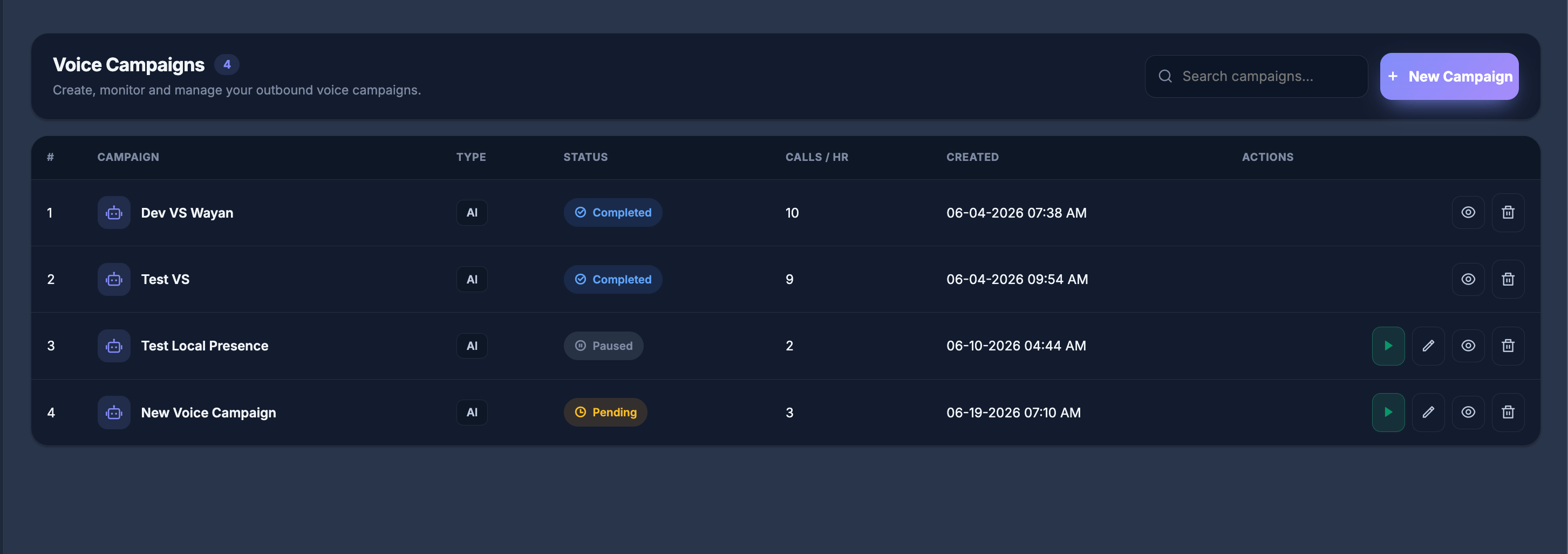
Open the Voice Campaigns page to create, monitor, and manage outbound calling campaigns:
[https://app.aisync.link/manage/voice\_campaign](https://app.aisync.link/manage/voice_campaign)
 **Top actions**
* **Search campaigns…** — find campaigns by name.
* **+ New Campaign** — open the Voice Campaign Builder.
**Table columns**
| Column | Description |
| - | - |
| **Campaign** | Campaign name (AI campaigns show a robot icon). |
| **Type** | Campaign engine — for example **AI**. |
| **Status** | Current state — Pending, In Progress, Paused, or Completed. |
| **Calls / HR** | Target calls per hour for the campaign. |
| **Created** | Date and time the campaign was created. |
| **Actions** | Start, edit, view report, or delete (availability depends on status). |
## 🚀 Launch a Voice Campaign
Select **+ New Campaign** to open the Voice Campaign Builder.
**Top actions**
* **Search campaigns…** — find campaigns by name.
* **+ New Campaign** — open the Voice Campaign Builder.
**Table columns**
| Column | Description |
| - | - |
| **Campaign** | Campaign name (AI campaigns show a robot icon). |
| **Type** | Campaign engine — for example **AI**. |
| **Status** | Current state — Pending, In Progress, Paused, or Completed. |
| **Calls / HR** | Target calls per hour for the campaign. |
| **Created** | Date and time the campaign was created. |
| **Actions** | Start, edit, view report, or delete (availability depends on status). |
## 🚀 Launch a Voice Campaign
Select **+ New Campaign** to open the Voice Campaign Builder.
 ### 📝 Step 1 — Campaign Type
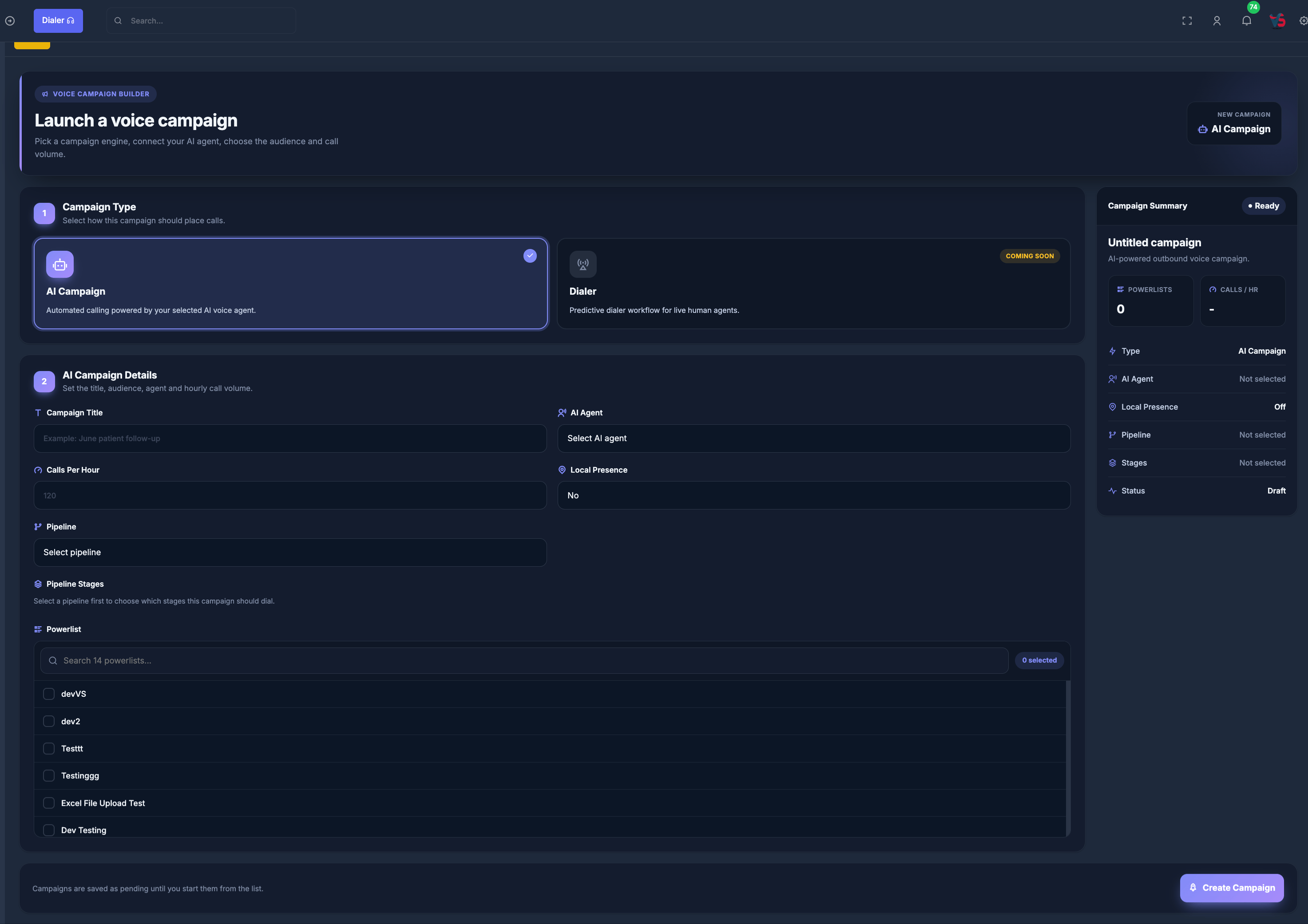
Choose the campaign engine:
* **AI Campaign** — automated calling powered by your selected AI voice agent. Available for new campaigns.
* **Dialer** — predictive dialer workflow for live human agents. Shown as **Coming Soon**.
### 🧠 Step 2 — AI Campaign Details
Fill in the following fields:
**Campaign Title**
Enter a clear name for your campaign (e.g., "June patient follow-up").
**AI Agent**
Select the AI voice agent that will place or handle the calls.
**Calls Per Hour**
Set how many calls the campaign should attempt each hour (e.g., `120`).
**Local Presence**
Choose whether to use local presence dialing (`Yes` or `No`).
**Pipeline**
Select the pipeline this campaign should use.
**Pipeline Stages**
After choosing a pipeline, select which stages the campaign should dial.
**Powerlist**
Select one or more contact lists. Use search to find lists, then check the ones to include. A badge shows how many powerlists are selected.
The **Campaign Summary** panel on the right updates as you configure the campaign (type, AI agent, local presence, pipeline, stages, powerlists, and calls per hour).
Click **Create Campaign** when ready. Campaigns are saved as **Pending** until you start them from the campaign list.
## 🎯 Predictive Dialer + AI Agent Handling
### 🔄 Dialing Behavior
When the Dialer engine is available, the system dials multiple numbers at a time using predictive dialing.
When multiple contacts pick up:
Example: 3 people answer, but only 1 human agent is available:
* ✅ 1 call → routed to available human agent
* 🤖 2 remaining calls → routed to AI agents
### 🤖⚙️ AI Agent Assignment (Per PowerList)
Each PowerList can have a dedicated AI agent assigned.
### 📝 Step 1 — Campaign Type
Choose the campaign engine:
* **AI Campaign** — automated calling powered by your selected AI voice agent. Available for new campaigns.
* **Dialer** — predictive dialer workflow for live human agents. Shown as **Coming Soon**.
### 🧠 Step 2 — AI Campaign Details
Fill in the following fields:
**Campaign Title**
Enter a clear name for your campaign (e.g., "June patient follow-up").
**AI Agent**
Select the AI voice agent that will place or handle the calls.
**Calls Per Hour**
Set how many calls the campaign should attempt each hour (e.g., `120`).
**Local Presence**
Choose whether to use local presence dialing (`Yes` or `No`).
**Pipeline**
Select the pipeline this campaign should use.
**Pipeline Stages**
After choosing a pipeline, select which stages the campaign should dial.
**Powerlist**
Select one or more contact lists. Use search to find lists, then check the ones to include. A badge shows how many powerlists are selected.
The **Campaign Summary** panel on the right updates as you configure the campaign (type, AI agent, local presence, pipeline, stages, powerlists, and calls per hour).
Click **Create Campaign** when ready. Campaigns are saved as **Pending** until you start them from the campaign list.
## 🎯 Predictive Dialer + AI Agent Handling
### 🔄 Dialing Behavior
When the Dialer engine is available, the system dials multiple numbers at a time using predictive dialing.
When multiple contacts pick up:
Example: 3 people answer, but only 1 human agent is available:
* ✅ 1 call → routed to available human agent
* 🤖 2 remaining calls → routed to AI agents
### 🤖⚙️ AI Agent Assignment (Per PowerList)
Each PowerList can have a dedicated AI agent assigned.
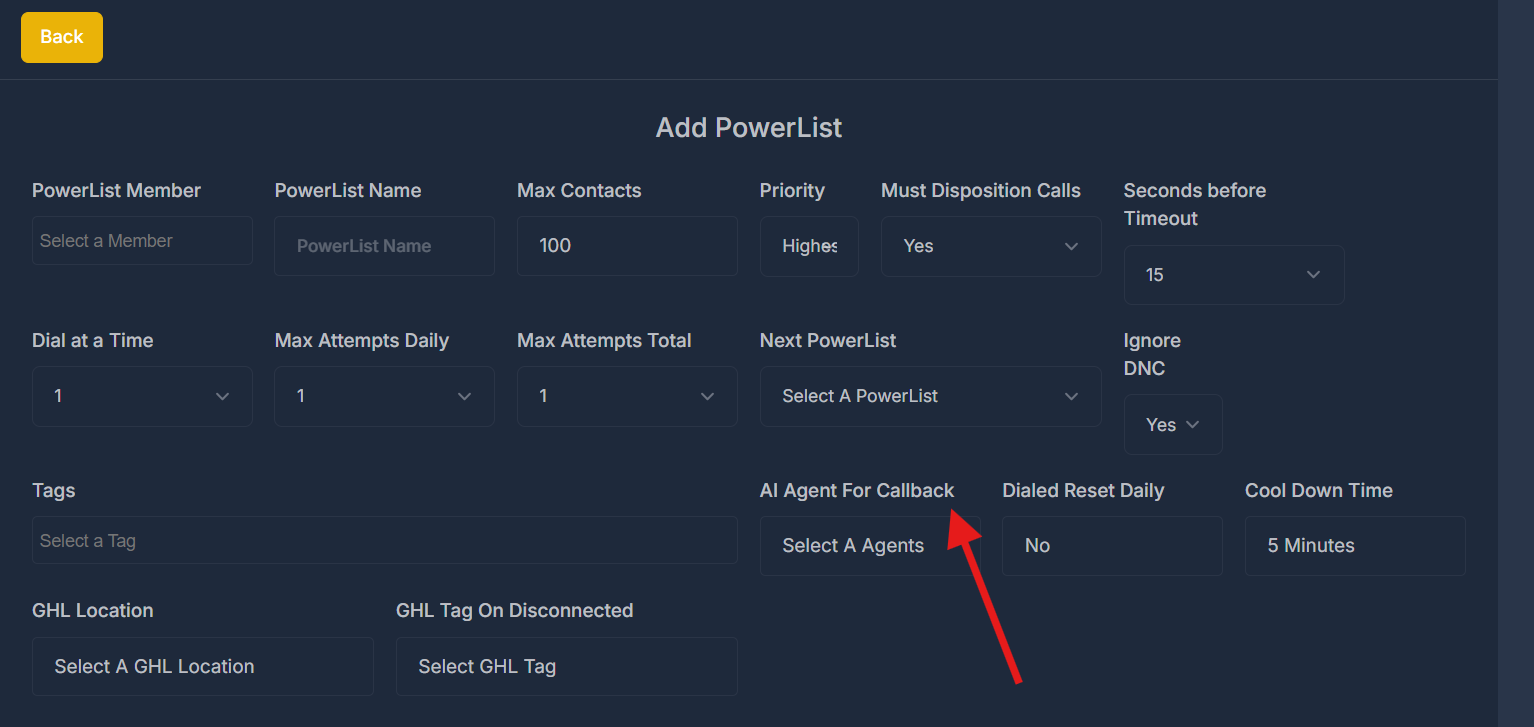 This allows dynamic customization of:
* 🤝 Tone & behavior
* 📜 Script logic
* 🎯 Lead type handling
AI agents act as backups for overflow or after-hours handling.
### 🔁 Callback Handling Logic
If a contact picks up but drops (due to no human agent available) or misses the call:
That lead is automatically flagged for callback.
The PowerList-assigned AI agent will:
* Re-engage the lead via automated callback
* Attempt to qualify, reschedule, or book appointment directly
## 🆕 What changed recently
**Predictive dialing for live human reps is available.** Previously campaigns
were for AI agents only. An admin can now pace a shared list across a floor of
reps, and reps never pick their own line count.
Turning it on takes two deliberate steps and it will not run below two reps
online. See [Predictive pacing](/dialer/predictive-pacing).
See [What's New](/go-live/changelog) for the full history.
This documentation is built and hosted on [Mintlify](https://mintlify.com), a developer documentation platform.
This allows dynamic customization of:
* 🤝 Tone & behavior
* 📜 Script logic
* 🎯 Lead type handling
AI agents act as backups for overflow or after-hours handling.
### 🔁 Callback Handling Logic
If a contact picks up but drops (due to no human agent available) or misses the call:
That lead is automatically flagged for callback.
The PowerList-assigned AI agent will:
* Re-engage the lead via automated callback
* Attempt to qualify, reschedule, or book appointment directly
## 🆕 What changed recently
**Predictive dialing for live human reps is available.** Previously campaigns
were for AI agents only. An admin can now pace a shared list across a floor of
reps, and reps never pick their own line count.
Turning it on takes two deliberate steps and it will not run below two reps
online. See [Predictive pacing](/dialer/predictive-pacing).
See [What's New](/go-live/changelog) for the full history.
This documentation is built and hosted on [Mintlify](https://mintlify.com), a developer documentation platform.