> ## Documentation Index
> Fetch the complete documentation index at: https://docs-old.aisync.link/llms.txt
> Use this file to discover all available pages before exploring further.
# Incoming Call Routing
> Who answers when a lead calls one of your numbers, where callbacks ring, and how to send calls to an AI agent.
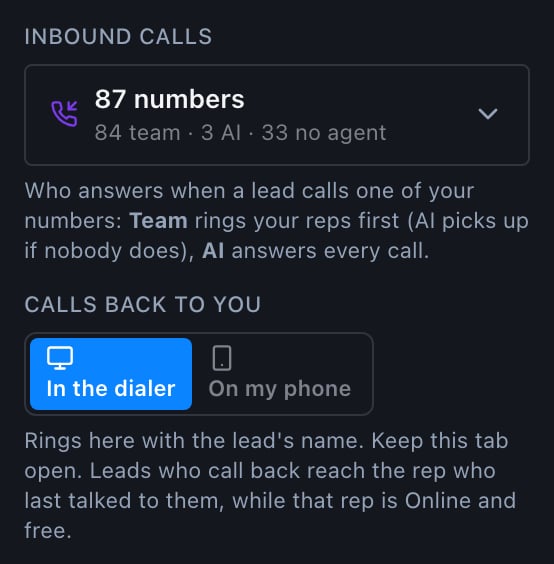
When a lead calls one of your numbers, AI Sync decides **who** answers (a rep or your AI agent) and **where** it rings (in the dialer or on the rep's phone). Both are set in the dialer's settings panel, under **Inbound calls** and **Calls back to you**.
 ## Who answers: Team or AI
Each of your numbers is set to **Team** or **AI**. Open **Inbound calls** in the dialer to see every number and change it.
## Who answers: Team or AI
Each of your numbers is set to **Team** or **AI**. Open **Inbound calls** in the dialer to see every number and change it.
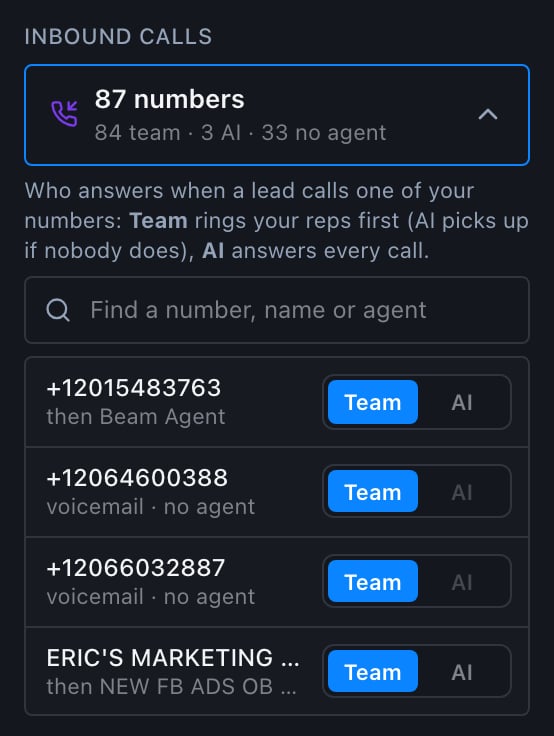 One rep rings first (see below). If they don't pick up within 25 seconds, or no rep is free, the number's AI agent answers. With no AI agent attached, the call goes to voicemail.
The AI agent answers every call to this number. No rep rings.
A number can also be set to **reps only** (no AI backup), where an unanswered call goes to voicemail. The dialer shows it as Team with "Reps only, no AI fallback".
**AI** is greyed out on a number until an AI agent is attached to it. Attach one in the web app under **AI → Numbers**, then come back and choose AI or Team.
### Send inbound calls to an AI agent
1. In the web app, open **AI → Numbers** and attach your inbound AI agent to the number.
2. In the dialer, open **Inbound calls** and find the number.
3. Choose **AI** to have the agent answer every call, or **Team** to ring your reps first with the agent as the backup.
Most teams choose **Team**: a person gets the first chance at a hot callback, and the AI agent makes sure nobody reaches a dead end.
## Which rep it rings
A lead who calls back rings **one rep**:
1. **The rep who last had a real conversation with them**: a call of 30 seconds or more, or one a person answered, in the last 7 days. A rep who dialed the lead and got no answer doesn't take over the callback.
2. If that rep isn't free, the **free rep who has waited longest** among the reps on that number or the lead's list.
3. If none of them is free, the free rep who has waited longest on the rest of the team.
**Free** means: Online in the dialer, not already on a call, and inside their working hours. This applies on **On my phone** too: a rep who is Offline in the dialer is never rung.
If the rep doesn't pick up within **25 seconds**, the call does not move on to another rep. It goes to the number's backup: the AI agent, or voicemail when no agent is attached.
**Direct lines:** a number assigned to one rep as their own line rings only that rep. If they can't answer, it goes to that number's backup (voicemail, the AI agent, or the team), as set on the number.
## What you'll see when a lead calls
In the dialer, the call fills the screen and rings. If you talked to the lead recently, it says **They called you back** with their name. Otherwise it says **Incoming Call** with their number.
One rep rings first (see below). If they don't pick up within 25 seconds, or no rep is free, the number's AI agent answers. With no AI agent attached, the call goes to voicemail.
The AI agent answers every call to this number. No rep rings.
A number can also be set to **reps only** (no AI backup), where an unanswered call goes to voicemail. The dialer shows it as Team with "Reps only, no AI fallback".
**AI** is greyed out on a number until an AI agent is attached to it. Attach one in the web app under **AI → Numbers**, then come back and choose AI or Team.
### Send inbound calls to an AI agent
1. In the web app, open **AI → Numbers** and attach your inbound AI agent to the number.
2. In the dialer, open **Inbound calls** and find the number.
3. Choose **AI** to have the agent answer every call, or **Team** to ring your reps first with the agent as the backup.
Most teams choose **Team**: a person gets the first chance at a hot callback, and the AI agent makes sure nobody reaches a dead end.
## Which rep it rings
A lead who calls back rings **one rep**:
1. **The rep who last had a real conversation with them**: a call of 30 seconds or more, or one a person answered, in the last 7 days. A rep who dialed the lead and got no answer doesn't take over the callback.
2. If that rep isn't free, the **free rep who has waited longest** among the reps on that number or the lead's list.
3. If none of them is free, the free rep who has waited longest on the rest of the team.
**Free** means: Online in the dialer, not already on a call, and inside their working hours. This applies on **On my phone** too: a rep who is Offline in the dialer is never rung.
If the rep doesn't pick up within **25 seconds**, the call does not move on to another rep. It goes to the number's backup: the AI agent, or voicemail when no agent is attached.
**Direct lines:** a number assigned to one rep as their own line rings only that rep. If they can't answer, it goes to that number's backup (voicemail, the AI agent, or the team), as set on the number.
## What you'll see when a lead calls
In the dialer, the call fills the screen and rings. If you talked to the lead recently, it says **They called you back** with their name. Otherwise it says **Incoming Call** with their number.
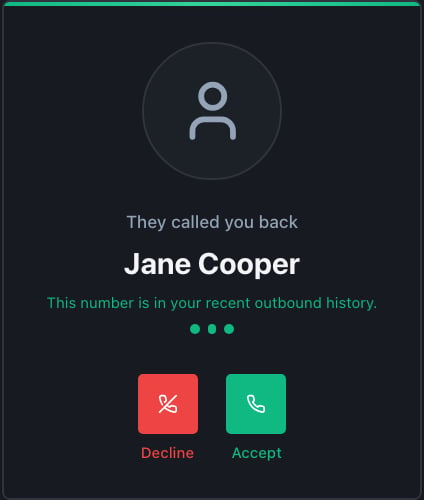 * **Accept** (green): you're connected to the lead.
* **Decline** (red): the call goes to the number's backup, the AI agent or voicemail. It doesn't move on to another rep.
* Do nothing for **25 seconds**: same as Decline.
The guided setup in the dialer (the compass button at the top) shows this card too, so new reps see it before a real call arrives.
## Where it rings: in the dialer or on your phone
Each rep chooses under **Calls back to you**:
* **Accept** (green): you're connected to the lead.
* **Decline** (red): the call goes to the number's backup, the AI agent or voicemail. It doesn't move on to another rep.
* Do nothing for **25 seconds**: same as Decline.
The guided setup in the dialer (the compass button at the top) shows this card too, so new reps see it before a real call arrives.
## Where it rings: in the dialer or on your phone
Each rep chooses under **Calls back to you**:
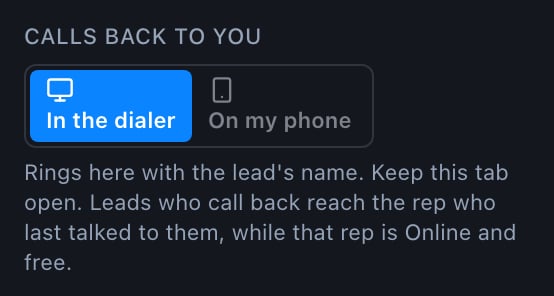 * **In the dialer:** the call pops up in the dialer with the lead's name and *They called you back*. Keep the dialer open in one browser tab.
* **On my phone:** the call forwards to your cell. Enter your personal cell the first time you choose it. Your company's own numbers can't be used, because they would ring themselves. Your phone shows a caller ID, not the lead's name, so check the dialer or the lead's record to see who called.
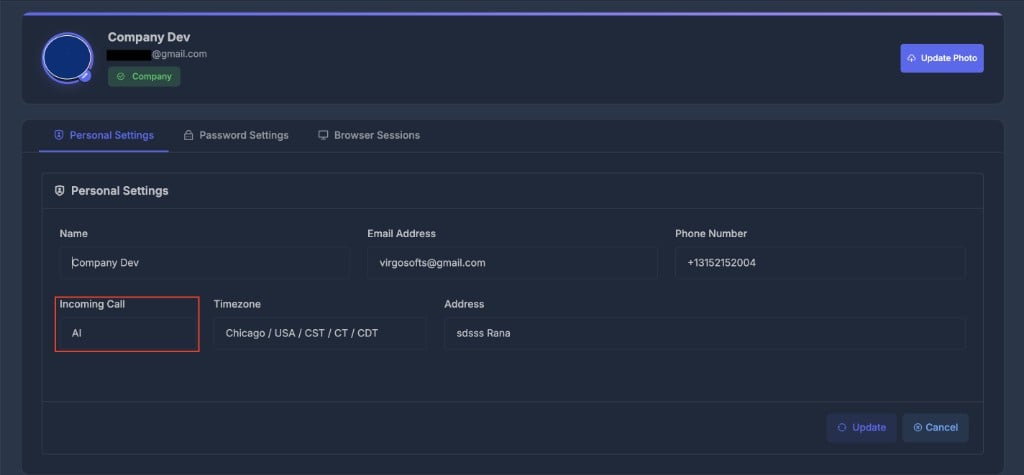
You can also change this in the web app under **Profile → Personal Settings → Incoming Call**: [app.rizzdial.com/profile](https://app.rizzdial.com/profile). Choosing **AI** there takes you out of ringing: your callbacks go to the next free rep or the number's backup. **Dialer + AI** rings the same as **Dialer**.
Whether the AI agent answers is decided by the **number** (Team or AI), not by a rep's own setting.
* **In the dialer:** the call pops up in the dialer with the lead's name and *They called you back*. Keep the dialer open in one browser tab.
* **On my phone:** the call forwards to your cell. Enter your personal cell the first time you choose it. Your company's own numbers can't be used, because they would ring themselves. Your phone shows a caller ID, not the lead's name, so check the dialer or the lead's record to see who called.
You can also change this in the web app under **Profile → Personal Settings → Incoming Call**: [app.rizzdial.com/profile](https://app.rizzdial.com/profile). Choosing **AI** there takes you out of ringing: your callbacks go to the next free rep or the number's backup. **Dialer + AI** rings the same as **Dialer**.
Whether the AI agent answers is decided by the **number** (Team or AI), not by a rep's own setting.
 ## Quick answers
Only when you're free: Online, not on a call, and inside your working hours. If you're on a call, the lead rings the next free rep. If nobody is free, it goes to the number's backup.
Yes. Choose **On my phone** under **Calls back to you** and enter your cell. Stay Online in the dialer, or the call won't ring you.
Yes. Attach an AI agent to the number in **AI → Numbers**, then set the number to **AI** under **Inbound calls**.
This documentation is built and hosted on [Mintlify](https://mintlify.com), a developer documentation platform.
## Quick answers
Only when you're free: Online, not on a call, and inside your working hours. If you're on a call, the lead rings the next free rep. If nobody is free, it goes to the number's backup.
Yes. Choose **On my phone** under **Calls back to you** and enter your cell. Stay Online in the dialer, or the call won't ring you.
Yes. Attach an AI agent to the number in **AI → Numbers**, then set the number to **AI** under **Inbound calls**.
This documentation is built and hosted on [Mintlify](https://mintlify.com), a developer documentation platform.